
Every sale leaves a trail: a payment, a drop in stock, a line in someone’s report. Many small businesses still track that trail on one back-office computer, and it breaks the moment the owner leaves the building.
A cloud-based POS system fixes that by keeping your sales and inventory data online, where you and your team can reach it from any device. This guide explains what a cloud-based POS system is, how a sale moves through it, what happens when the internet drops, and what to check before you buy.
What is a cloud-based POS system?
A cloud-based POS system is point-of-sale software that stores sales, inventory, and customer data on remote servers instead of a single in-store computer. Staff ring up sales on tablets, registers, or phones, and owners view live reports from any internet-connected device.
1. Understanding cloud-based point of sale technology
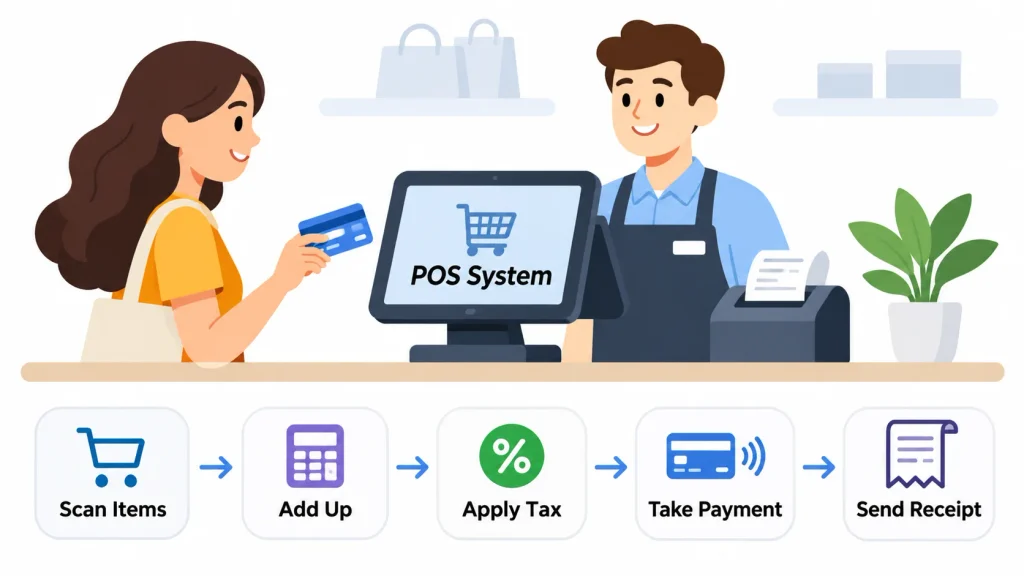
A point of sale is the moment a customer pays you. The POS system is the software and hardware that records that moment: it adds up the items, applies tax, takes payment, and prints or emails a receipt.
Older systems ran on a computer or server inside the shop. Everything lived there, including the database. A cloud POS moves that database and most of the business logic to servers run by the software vendor, using cloud computing. Most vendors sell it as software as a service, so you pay a subscription instead of buying a license.
The software and the hardware are separate things. The cloud part is the software and data. The tablet, card reader, and receipt printer on your counter are still physical devices you need to own or rent.
2. How cloud POS software stores and manages business data
When a cashier completes a sale, the register sends the details to the vendor’s servers. Those servers keep one central database with your transaction records, product catalog, stock counts, customer profiles, and staff activity.
Because there is one shared database, every device sees the same numbers. A sale at the front counter and a sale on the owner’s phone end up in the same place. Reports are built from that data, so the daily sales total is already there when you log in.
3. Common components of a cloud-based POS system
A cloud POS looks like one product, but several parts work together behind it.
POS software and dashboard. The app on the register is where staff ring up sales. The dashboard, usually a web page, is where managers set prices, check reports, and manage staff.
Hardware and payment terminals. This covers tablets or touchscreens, barcode scanners, receipt printers, cash drawers, and a card reader. Some vendors lock you into their own hardware. Others work with standard devices.
Cloud servers and database. These hold your data and run the system’s logic. You never see them, and you do not maintain them.
Internet connection. Wi-Fi, wired Ethernet, or a mobile data backup. It links your devices to the servers and to the payment network.
Payment gateway and processor. The payment gateway passes card details securely to the processor, which contacts the banks and returns an approval or a decline.
Integrations. Through APIs, a cloud POS can connect to accounting software, an online store, email marketing tools, or a kitchen display screen.
How does a cloud-based POS system work?
In short: the register records the sale, the payment terminal gets the card approved, and the record is sent to the cloud, where inventory and reports update. Two separate things happen along the way. One is payment authorization. The other is data syncing. They use different connections and can succeed or fail independently.
The flow looks like this:
Customer → register → payment terminal → payment processor and bank → cloud database → inventory and sales update → business dashboard
(Editor’s note: turn this flow into an original diagram. It is the most useful visual in the article.)
Step 1: A customer places an order
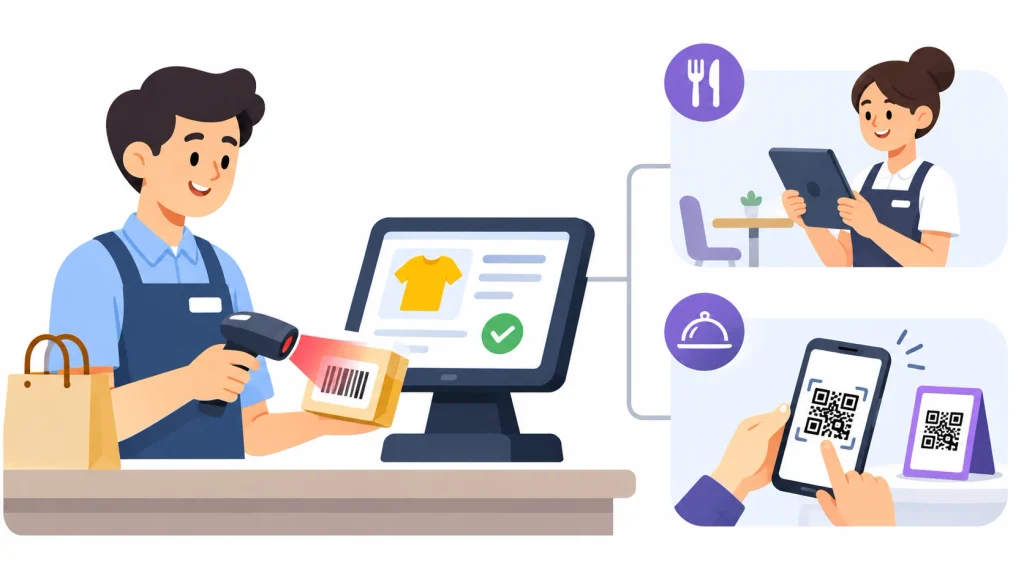
The cashier scans a barcode or taps an item on the screen. The register pulls the product name, price, and tax rate from its stored catalog. In a restaurant, the same step might be a server entering an order on a handheld or a guest ordering from a QR code menu.
Step 2: The POS records the transaction
The software calculates the total, including tax, discounts, tips, and any service charges. It builds a sales record with a unique number, a timestamp, and the staff member who rang it up.
Step 3: The payment is processed
The customer pays by chip card, tap, phone wallet, or cash. For card payments, the terminal reads the card and encrypts the data. The data goes through the gateway to the payment processor, which asks the customer’s bank whether the funds are available.
The bank answers with an approval or a decline, usually in a few seconds. Chip cards follow the EMV standard, and contactless payments rely on NFC. Your POS software typically never stores the full card number. The payment provider handles that.
Step 4: Transaction data is sent to the cloud
Once the sale is complete, the register sends the record to the vendor’s servers over an encrypted connection. The server saves it in the central database. From this point, every other device and dashboard can see the sale.
Step 5: Inventory and sales records are updated
The system subtracts the sold items from stock. If you sell online as well, a connected store can show the new quantity within moments. This is what prevents you from selling the last blue jacket twice.
Step 6: Business owners access reports and analytics
Managers open the dashboard to see sales by hour, best-selling products, refunds, stock levels, and each employee’s totals. They can do it from the back office or from a phone on a different continent.
Real-world example: a retail store sells a $50 shirt
Imagine a clothing shop with one till and an online store. A customer brings a $50 shirt to the counter. Here is what happens:
- The cashier scans the tag. The register looks up the price and adds tax.
- The customer taps a card. The terminal sends the encrypted payment data to the processor.
- The bank approves the payment and the terminal shows a green tick.
- The register saves the sale and sends it to the cloud.
- The shirt’s stock count in size medium drops from 4 to 3.
- The online store shows 3 left, and the owner’s dashboard adds $50 plus tax to the day’s revenue.
The approval in step 3 is the payment network doing its job. The updates in steps 4 to 6 are the cloud doing its job. If the connection to the cloud is slow, the customer can still be charged correctly while the stock count catches up a few moments later.
What are the main features of a cloud-based POS system?
Features vary by vendor, but these are the ones most businesses use daily.
Real-time inventory management
Stock counts update as items sell. You can set low-stock alerts, receive purchase orders, and count inventory from a tablet instead of a clipboard. Businesses looking to improve stock accuracy can also explore the essential features of inventory management software, including stock tracking, reorder management, and inventory optimization.
Centralized sales and transaction management
Every sale, refund, and void goes into one record. That makes end-of-day reconciliation faster and gives you a clear audit trail.
Remote access and mobile POS
Because the data lives online, a manager can check numbers from home. Staff can also take payments with a phone or tablet at a market stall, on the shop floor, or at a table.
Customer relationship management (CRM)
Many systems save customer names, emails, and purchase history. You can see who buys often, send receipts by email, and run simple loyalty programs.
Reporting and analytics
Reports show revenue, margins, sales trends, inventory turnover, and employee performance. The useful ones answer practical questions, such as which products tie up cash without selling.
For a broader view of business finances, cloud-based accounting software helps businesses manage financial records, track transactions, reconcile accounts, and generate reports online.
Employee management
Staff clock in and out, and each person gets a login with limited permissions. A cashier can ring up sales but cannot change prices or see profit reports.
Ecommerce and omnichannel integration
Linking the POS to an online store keeps prices and stock the same in both places. Platforms such as Shopify POS and Lightspeed are built around this idea. Businesses selling through multiple channels can also explore ecommerce solutions to manage online selling, inventory, and financial operations more efficiently.
Automatic updates and cloud backups
The vendor installs updates and backs up your data. You skip the manual patching, though you should still check how often backups run and how long they are kept.
Multi-store management
Owners with several locations can manage products, prices, and staff centrally while still seeing each store’s results separately. Stock transfers between stores can be recorded in one system.
What are the benefits of using a cloud-based POS system?
You can check the business from anywhere. A manager who is off site can still see sales, refunds, and stock in real time.
Upfront costs are usually lower. You do not buy and maintain an in-house server. You pay a subscription and buy or rent the front-of-house hardware.
Inventory is more accurate. One shared database means fewer mismatched counts between the shelf, the till, and the website.
Several locations are easier to run. Pricing changes, new products, and reports can be handled from one account instead of one store at a time.
Decisions rest on current numbers. You see today’s sales today, not in a weekly spreadsheet someone assembled by hand.
Daily work gets simpler. Closing the till, finding a receipt, and issuing a refund take fewer steps when everything is searchable.
It scales with you. Adding a register or a new store usually means adding a device and a subscription seat, not rebuilding your IT setup.
Customers get more payment options. Tap to pay, digital wallets, and emailed receipts are standard in most modern systems.
Cloud-based POS vs. traditional POS: what is the difference?
A traditional POS (often called on-premise or legacy) keeps its software and database on a local server or computer in your shop. A cloud POS keeps them with the vendor. Both can work well. The right choice depends on your setup.
| Factor | Cloud-based POS | Traditional POS |
| Data storage | Vendor’s cloud servers | Local server or computer |
| Access | Remote, from internet-connected devices | Usually only on site |
| Updates | Often applied automatically | Often installed manually |
| Maintenance | Vendor maintains the servers | You or an IT contractor does |
| Scaling | Add devices and users | May need new servers and licenses |
| Data syncing | Centralized by design | Depends on how it was set up |
| Upfront cost | Often lower | Often higher |
| Internet need | Depends on the vendor’s offline support | Depends on the architecture |
Neither column is automatically better. Some traditional systems sync across stores, and some cloud systems need a constant connection for certain features.
When should a business choose cloud POS?
Cloud POS suits shops that want remote access, run more than one location, sell online, or lack an IT person. It also fits businesses that expect to grow or add mobile selling.
When is a traditional POS still suitable?
A traditional system can make sense where internet access is poor or unreliable, where strict internal rules require data to stay on site, or where a long-running custom setup works well and the cost of changing is high.
Can a cloud-based POS system work without internet?
Sometimes, and only partly. Many cloud POS products include an offline mode that lets staff keep selling for a while. What works offline depends on the vendor, the hardware, and the payment method, so you should check before you buy, not during an outage.
Understanding offline POS functionality
In offline mode, the register keeps working from a local copy of your product list and prices. Staff can still ring up items, apply discounts, print receipts, and take cash. Features that need live data, such as online orders or looking up stock at other stores, usually stop until the connection returns.
How offline transactions are stored
The device saves each sale in local memory, in a queue. Most systems do this automatically and show a small offline indicator on screen. The sales sit on the device until the connection comes back.
How data syncs after the connection returns
When the internet is back, the register sends the queued sales to the cloud in order. Inventory and reports update afterward. If two devices sold the same item while offline, a system may show a temporary stock mismatch until it reconciles.
Limitations of offline payment processing
Cash is simple. Cards are harder, because normally the bank approves each payment in real time. Some vendors offer a stored-and-forward feature: the terminal saves the card payment and submits it later. If the card is declined at that point, the business may not get paid for that sale.
Some providers cap the amount per offline card payment. Others do not support offline card payments at all. U.S. Bank’s guidance on using a POS offline is a good starting point for the questions to ask.
What to check before choosing offline POS software
- Which actions work offline, and which stop?
- Does the terminal accept card payments offline? Is there a per-sale limit?
- Who bears the loss if a stored card payment is later declined?
- How long can the device stay offline before it stops?
- Does the vendor offer a mobile data backup router?
A practical example: a café loses its internet at 12:30 on a busy Friday. The tablets switch to offline mode. Staff keep taking orders and cash, and the café sets a low limit for offline card payments. When the connection returns twenty minutes later, the queued sales upload, and the manager checks the sync report before closing.
Is a cloud-based POS system secure?
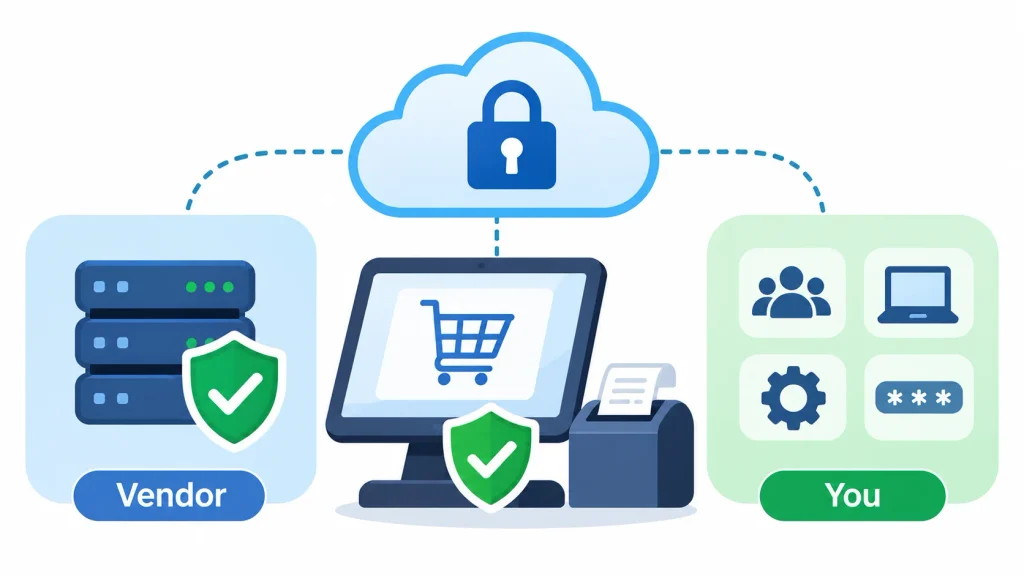
It can be, but cloud hosting does not make you secure on its own. Security is shared. The vendor protects its servers and payment systems. You control who logs in, how devices are used, and which settings are switched on. The U.S. Federal Trade Commission’s cybersecurity guidance for small businesses covers the basics for owners.
Data encryption and secure communication
Encryption scrambles data so that anyone who intercepts it cannot read it. A good provider encrypts data in transit (between your device and its servers) and at rest (while stored). Ask the vendor whether it does both.
Role-based access control
Role-based access control means each person sees only what their job needs. Cashiers ring up sales. Managers issue refunds. Only the owner sees financial reports.
Multi-factor authentication
Multi-factor authentication asks for a second proof of identity, such as a code on your phone, in addition to the password. Turn it on for every admin account. Stolen passwords are a common way into business systems.
Payment security and PCI DSS
The Payment Card Industry Data Security Standard (PCI DSS) sets rules for handling card data. The PCI Security Standards Council publishes it. Choose a provider that uses a compliant payment service, and ask how it keeps card numbers out of your own systems.
Automatic backups and disaster recovery
Ask how often backups run, where they are stored, and how fast the vendor can restore service after a major failure. Look for a public status page too, so you can see past incidents.
Common risks and how to prevent them
- Shared logins. Give each employee their own.
- Weak or reused passwords. Use a password manager and turn on multi-factor authentication.
- Former staff with active accounts. Remove access on the day they leave.
- Public Wi-Fi at the counter. Put the POS on a private network, separate from guest Wi-Fi.
- Outdated devices. Keep tablets and terminals updated.
Which businesses should use a cloud-based POS system?
Retail stores and supermarkets. A shop with thousands of items can run barcode scanning, stock counts, and supplier orders from one system.
Restaurants and cafés. Orders go from the table or counter straight to the kitchen screen, and tips and splits are handled at the register. Toast is built for restaurants, and other vendors offer restaurant modes.
Grocery stores. Weighed items, fast-moving stock, and expiry tracking make accurate inventory a daily need.
Fashion and apparel. Size and color variants can be tracked per item, and stock can be shared between the shop and the website.
Beauty salons and spas. Appointments, services, and product sales sit on one customer profile.
Food trucks and mobile sellers. A phone or tablet and a card reader are enough to take payments at events, with sales syncing whenever the signal allows.
Multi-location chains. The owner can compare locations, change prices across all stores, and move stock between them.
Ecommerce and omnichannel sellers. Online and in-person sales share one inventory, so the website does not sell what the shelf no longer has.
What are the limitations of cloud-based POS systems?
Cloud POS is not a perfect fit for everyone. These are the problems businesses run into most.
Internet dependence. Some functions, especially card processing and online orders, need a connection. A backup mobile data router is cheap insurance.
Recurring costs. You pay a subscription every month. Over several years it can exceed the price of a one-time license, so compare the total cost, not just the first bill.
Payment processing fees. Most providers charge a percentage per card transaction, sometimes plus a fixed amount. Some require you to use their processor.
Data migration and integrations. Moving products, customers, and sales history from an old system takes planning. Not every accounting or ecommerce tool connects cleanly.
Vendor dependency and data portability. If the vendor raises prices or shuts down, you need a way out. Ask whether you can export your data in a standard format, such as CSV.
Staff training. Even a simple system changes habits. Plan time for training before launch day.
Most of these can be reduced by asking questions before you sign: about offline mode, export tools, contract length, and processor fees.
How much does a cloud-based POS system cost?
Prices differ by vendor, country, transaction volume, and features, so any single figure would be misleading. What you can do is list the cost types and ask each vendor to quote them.
| Cost component | What you pay for |
| Software subscription | Monthly or annual access to the POS |
| Hardware | Terminals, tablets, scanners, printers, cash drawers |
| Payment processing | A fee on each card transaction |
| Installation | Setup and configuration |
| Integrations | Add-ons that connect to other software |
| Training | Staff onboarding time or paid sessions |
Subscriptions are often priced per register, per location, or by plan tier. Hardware may be bought outright, leased, or bundled. Ask about early termination fees and what happens to your data if you cancel.
How to choose the right cloud-based POS system
Start with how your business actually runs, then test vendors against that list.
- Define your needs. Count your registers, locations, products, and staff. Note whether you sell online.
- Check inventory features. Look for variants, low-stock alerts, purchase orders, and stock transfers if you need them.
- Review payment options. Find out which processor it uses, whether you can bring your own, and what the rates are.
- Verify security and compliance. Ask about encryption, multi-factor authentication, and PCI DSS.
- Confirm hardware compatibility. Check whether your existing devices work or whether you must buy theirs.
- Look at integrations. Make sure it connects to your accounting software and online store.
- Compare total fees. Add up subscription, processing, and hardware over three years.
- Test support and offline mode. Call support with a question. Disconnect a device from Wi-Fi and see what still works.
- Run a trial. Use a free trial or demo with your real products before committing.
Square, Shopify POS, Lightspeed, Clover, and Toast are well-known options. Each leans toward different business types, so compare them against your list.
How to implement a cloud-based POS system in your business
A smooth rollout follows a clear order. Here is a practical eight-step plan.
- Assess your current operations. Write down how you take payments, track stock, and report sales today, and what goes wrong.
- Select the platform. Use the checklist above and pick one vendor.
- Prepare the hardware. Order or test tablets, scanners, printers, and card readers. Check your Wi-Fi coverage at every register.
- Set up products and inventory. Import your product list, set prices and tax rates, and enter starting stock counts.
- Set up payment processing. Connect your payment provider and run test payments.
- Connect other software. Link accounting, ecommerce, and any loyalty or email tools. Set staff roles and permissions at the same time.
- Train staff and test. Let employees practice ringing up sales, refunds, and offline mode before opening day.
- Launch and review. Watch the first weeks closely. Fix problems quickly and check reports against your cash and card totals.
If you are replacing an old system, run both side by side for a short period, and keep an export of your old data.
Frequently asked questions about cloud-based POS systems
What is a cloud-based POS system in simple words?
It is a checkout system that saves your sales and stock information online instead of on one computer in the shop. You can log in from any device to see what is happening in your business.
How does a cloud-based POS system work?
The register records the sale, the payment terminal gets the card approved, and the sale is sent to the vendor’s servers. Inventory and reports then update, and managers can see them on the dashboard.
Does a cloud POS system require internet?
Mostly yes. It needs a connection to sync data and to approve card payments. Many systems have an offline mode that keeps basic selling going for a while.
Can cloud POS work offline?
Often, to a degree. Cash sales and receipts usually keep working. Card payments, online orders, and multi-store stock lookups depend on the vendor and the setup.
Is cloud-based POS better than traditional POS?
For many businesses, it is easier to run and update, especially with more than one location. A traditional system can still suit shops with unreliable internet or special data rules.
Is cloud POS suitable for small businesses?
Yes, in most cases. Low upfront costs and phone or tablet selling suit small shops, stalls, and cafés. Compare total fees before you commit.
Does a cloud-based POS system require special hardware?
You need a device to run the app and a way to take payments, such as a card reader. Some vendors work with ordinary tablets. Others require their own terminals.
Where is data stored in a cloud POS system?
In data centers run by the vendor or its cloud hosting partner. Ask the vendor where your data is stored and how it is backed up.
Are cloud POS systems secure?
Reputable vendors use encryption, access controls, and PCI-compliant payment handling. You still need strong passwords, multi-factor authentication, and sensible staff permissions.
How much does cloud POS software cost?
It depends on the vendor and your needs. Expect a subscription, hardware, and card processing fees. Get written quotes for each.
Final thoughts
A cloud-based POS system handles payments, tracks inventory, and gives you one place to see how your business is doing. For many shops, restaurants, and growing chains, it replaces a patchwork of till tapes, spreadsheets, and phone calls.
It is not right for every business, and the details matter. Before you buy, check offline mode, security settings, total fees, and how easily you can export your data. Then write down what you need from a POS and test two or three vendors against that list.
