


TRACES stands for TDS Reconciliation Analysis and Correction Enabling System. It is an online platform developed and maintained by the Income Tax Department of India under the Central Board of Direct Taxes (CBDT).
If you have ever filed a TDS return, checked your Form 26AS, or downloaded Form 16 online, you have already interacted with TRACES whether you realized it or not. The TRACES portal is the backbone of India’s TDS and TCS compliance infrastructure. Yet many deductors, taxpayers, and chartered accountants still find it confusing to navigate.
This guide explains everything about TRACES in plain language: what it is, how it works, how to register and log in, what services are available, and how to fix errors when things go wrong.
Purpose of the TRACES Portal
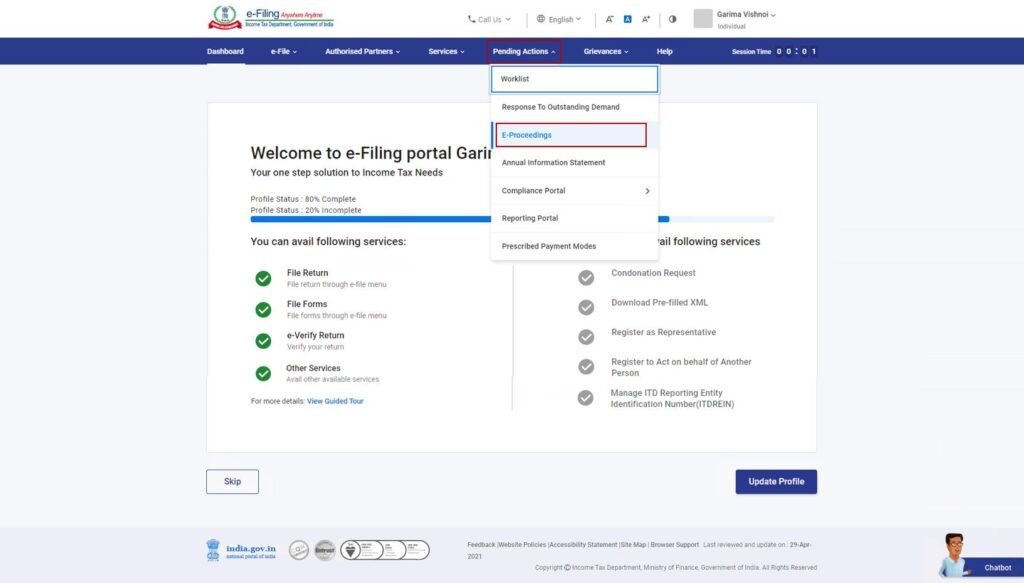
The TRACES portal serves as the central hub for all TDS and TCS-related activities in India. It allows deductors to file corrections, download TDS certificates, verify challans, and track defaults. Taxpayers can view their TDS credit, download Form 26AS, and verify whether the TDS deducted from their income has actually been deposited with the government.
Before TRACES existed, TDS reconciliation was done manually and was prone to errors. The portal replaced this paper-based system with an automated, end-to-end digital process.
Why the Income Tax Department Created TRACES
The Income Tax Department created TRACES to solve a very specific problem: mismatches between TDS deducted, TDS deposited, and TDS reflected in taxpayer accounts.
Earlier, a deductor could deduct TDS from an employee’s salary and deposit it in the wrong PAN or wrong challan. The taxpayer would suffer because the credit would not appear in their account. There was no easy way for the department to detect these mismatches at scale.
TRACES solved this by creating a single platform where all three parties (deductors, taxpayers, and the Income Tax Department) could see the same data, compare it, and correct errors in a structured way.
How TRACES Supports TDS and TCS Compliance
TRACES supports compliance by:
- Giving deductors a single window to manage all TDS filing activities
- Allowing taxpayers to independently verify their TDS credit
- Enabling the Income Tax Department to identify defaults, short deductions, and mismatches automatically
- Generating Form 16, Form 16A, and other TDS certificates in a standardized format
- Facilitating online correction requests without requiring physical visits to a TDS office
How TRACES Works
The TDS filing process follows a clear sequence. A deductor first deducts tax from a payment (salary, rent, professional fees, etc.), deposits it with the government using a challan, and then files a quarterly TDS return (Form 24Q for salary, Form 26Q for non-salary payments).
Once the return is filed, TRACES processes it, matches the challan data with what the deductor has reported, and posts the TDS credit to the taxpayer’s account. The taxpayer can then view this credit in Form 26AS or the Annual Information Statement (AIS).
TDS Reconciliation Process
Reconciliation is the matching of TDS deducted, TDS deposited, and TDS filed in the return. TRACES performs this reconciliation automatically.
If the challan amount does not match the amount mentioned in the TDS return, TRACES flags it as a mismatch. Similarly, if the PAN of the deductee is wrong or missing, the credit does not get posted to the right account. These discrepancies show up in the Justification Report, which is available for download on the portal.
Correction Workflow
When a deductor identifies an error in a filed TDS return, the correction is done through TRACES. The process involves:
- Downloading the Consolidated (Conso) file from TRACES
- Importing it into TDS return preparation software (like NSDL’s RPU)
- Making the required corrections
- Uploading the corrected file on the TRACES portal
TRACES then processes the correction and updates the TDS records accordingly.
Stakeholders Involved
Deductors
Deductors are entities that deduct TDS before making payments. They can be employers, businesses, banks, or government departments. On TRACES, deductors are responsible for filing returns, downloading certificates, and submitting corrections.
Taxpayers
Taxpayers are individuals or entities from whose income TDS has been deducted. They use TRACES primarily to verify TDS credit and download Form 26AS.
PAO
Pay and Accounts Offices (PAOs) operate under government departments and are responsible for TDS deducted on government salaries and contractor payments. They have a separate login and workflow on TRACES.
Tax Professionals
Chartered accountants, tax consultants, and authorized representatives use TRACES to manage TDS compliance on behalf of clients. They can be granted sub-user access under a deductor’s account.
Key Features of the TRACES Portal
1. Online Registration
TRACES allows deductors, taxpayers, and PAOs to register online without visiting any office. The registration process requires basic details like PAN, TAN, and challan information for verification.
2. TDS Statement Tracking
Deductors can track the status of their filed TDS statements directly on the portal. This includes checking whether a return has been accepted, processed, or rejected, and viewing the processing summary.
3. Challan Verification
Before filing a TDS return, deductors can verify whether the challan used for TDS deposit is correctly mapped in the system. This prevents mismatches before they occur.
4. Form 16 Download
Deductors can download Part A of Form 16 (the employer’s TDS certificate for salary) directly from TRACES. Part B is prepared separately, but Part A must be downloaded from TRACES as it carries a unique certificate number.
5. Form 16A Download
Form 16A is the TDS certificate for non-salary payments. TRACES generates Form 16A based on the filed TDS return data. Deductors must download it from TRACES and issue it to the deductees.
6. Form 26AS Access
Taxpayers can view and download Form 26AS, which is a consolidated tax credit statement. It shows all TDS deducted, advance tax paid, self-assessment tax paid, and any refunds issued.
7. Online Correction Requests
TRACES supports online corrections for minor errors in filed TDS returns without requiring the deductor to file a fresh return. PAN corrections, challan corrections, and deductee detail corrections can be submitted directly through the portal.
8. PAN Verification
Deductors can verify PANs on TRACES before filing TDS returns. This reduces the risk of mentioning incorrect PANs, which leads to higher TDS rates and credit mismatches.
9. Default Summary
The Default Summary section shows a deductor all outstanding defaults related to their TDS returns. This includes short deduction, short payment, late filing fees, and interest on late deposit.
10. Grievance Management
TRACES has a built-in grievance submission mechanism. Taxpayers and deductors can raise complaints regarding TDS credit mismatches, certificate download failures, and other issues.
11. Refund Requests
If a deductor has deposited excess TDS in a challan, they can apply for a refund directly through TRACES. The refund request is processed after verification by the Assessing Officer.
TRACES 2.0: What’s New in 2026?
New Dashboard
TRACES 2.0 introduced a completely redesigned dashboard that organizes information into clear categories. The new layout separates deductor functions, taxpayer functions, and administrative tasks into distinct sections, making navigation much faster.
Simplified Navigation
Earlier versions of TRACES had a cluttered menu structure. The 2.0 version uses a cleaner menu hierarchy with a search function, allowing users to find specific features without browsing through multiple dropdown menus.
Improved Reporting
The reporting module in TRACES 2.0 provides more detailed summaries of TDS defaults, correction histories, and certificate issuance records. Reports can now be filtered by date range, TAN, and assessment year.
Enhanced Taxpayer Experience
Taxpayers now have a dedicated section that shows TDS credit across all income sources in one view. The portal also cross-references TRACES data with AIS data, making it easier to spot discrepancies before filing an income tax return.
Income Tax Act 2025 Alignment
With the Income Tax Act 2025 coming into force, TRACES 2.0 has been updated to reflect revised TDS rates, new section references, and updated threshold limits. Forms and certificates on the portal now carry references aligned to the 2025 Act.
Who Can Use TRACES?
a. Deductors
Any entity that deducts TDS must register on TRACES. This includes companies, partnership firms, HUFs, banks, government departments, and individuals with a valid TAN.
b. Taxpayers
Any individual or entity that has had TDS deducted from their income can register on TRACES using their PAN. Registration gives them access to Form 26AS, TDS credit details, and the ability to raise grievances.
c. Pay and Accounts Offices (PAO)
Government departments route their TDS through PAOs. These offices register separately on TRACES using their PAO registration number and manage TDS filing for their respective departments.
d. Chartered Accountants
CAs and tax professionals do not have a separate registration category on TRACES. They operate either as sub-users under a deductor’s account or as authorized representatives. They can access most deductor services once sub-user access is granted.
TRACES Registration Process
Documents Required
For deductor registration, you need: TAN, PAN of the responsible person, challan details from the most recent TDS deposit (BSR code, challan serial number, date, and amount), and the token number from the last filed TDS statement.
For taxpayer registration, you need: PAN, date of birth or date of incorporation, and details from Form 26AS or a recent TDS certificate.
Registration for Taxpayers
- Visit traces.gov.in and click on “Register as New User”
- Select “Taxpayer” as the user type
- Enter your PAN, date of birth, and the captcha
- Provide the required validation details from your tax records
- Set a password and complete email verification
- Your account will be activated after OTP verification
Registration for Deductors
- Go to traces.gov.in and select “Register as New User”
- Choose “Deductor” as the user type
- Enter TAN, challan details (BSR code, challan date, challan serial number, and amount), and token number of the last TDS return
- Create login credentials and provide a valid email address and mobile number
- Complete OTP verification on both mobile and email
- Activation typically happens within 24 to 48 hours
Registration for PAO
PAOs register using their PAO code, Ministry/Department code, and DDO (Drawing and Disbursing Officer) details. The registration process requires coordination between the PAO and its respective government department for verification.
Account Activation Process
After submitting the registration form, TRACES sends an activation link to the registered email ID. Clicking this link, along with OTP confirmation, activates the account. For deductors, TRACES cross-validates the provided challan and return details before approval.
Common Registration Errors
The most frequent issues during registration include:
- Challan details not matching TRACES records (ensure BSR code and amount are exact)
- Token number from an older return instead of the most recent one
- PAN and TAN mismatch in the registration form
- Using an already registered email ID
- OTP expiry before completion (complete the process within 10 minutes of receiving the OTP)
How to Login to TRACES
Deductor Login Process
- Go to traces.gov.in
- Click on “Login” and select “Deductor”
- Enter User ID (TAN), password, and captcha
- Complete OTP verification if prompted
- You will land on the deductor dashboard
Taxpayer Login Process
- Visit traces.gov.in and click “Login”
- Select “Taxpayer” as the user type
- Enter User ID (PAN), password, and captcha
- Complete OTP if prompted
- You will see the taxpayer dashboard with TDS credit summary
PAO Login Process
PAOs log in using their PAO registration ID and password. The workflow is similar to deductor login but leads to a PAO-specific dashboard with relevant forms and filing options.
Sub-User Login
Sub-users created under a deductor account log in using their assigned sub-user ID and password. They access only those functions that the primary account holder has authorized.
Password Reset Process
If you forget your TRACES password:
- Click “Forgot Password” on the login page
- Enter your User ID (PAN or TAN)
- Choose to reset via registered email or mobile OTP
- Set a new password after verification
Passwords must be at least 8 characters and include one uppercase letter, one number, and one special character.
Login Troubleshooting
Common login issues and their fixes:
- Account locked: Triggered after 5 failed attempts. Wait 24 hours or use the “Forgot Password” option to reset.
- Captcha not loading: Clear browser cache or try a different browser. TRACES works best on Google Chrome.
- OTP not received: Check spam folder, ensure the mobile number is active, or try the email OTP option.
- Session timeout: TRACES sessions expire after 20 minutes of inactivity. Save work frequently.
Services Available for Deductors
1. Download Form 16
Deductors can download the digitally signed Part A of Form 16 for each employee after processing the quarterly TDS return. This requires the Form 24Q return to be filed and accepted. The downloaded file carries a unique digital certificate number.
2. Download Form 16A
Form 16A is generated for non-salary TDS payments and can be downloaded after the corresponding Form 26Q or Form 27Q return is processed. Deductors must download and issue this certificate to deductees within the prescribed timeline.
3. Download Conso File
The Consolidated file (Conso file) is a compressed file containing all the data from a previously filed TDS return. It is required when making corrections. TRACES allows deductors to download the Conso file for any past quarter after entering the required credentials.
4. Download Justification Report
The Justification Report is a detailed document showing all the defaults identified in a TDS return. It lists errors like short deduction, short payment, PAN errors, and late filing fees along with the corresponding interest calculations. This report is the starting point for any correction exercise.
5. Online Corrections
For minor errors, TRACES allows online corrections without downloading the Conso file. PAN corrections, challan corrections, and addition of new deductee rows can be done directly on the portal. The changes are applied after verification and approval.
6. PAN Verification
Deductors can verify up to 20 PANs in a single request on TRACES. The portal checks each PAN against the Income Tax database and confirms whether it is valid and active.
7. TDS Refund Requests
If a deductor has excess TDS in a challan (more than what was required), they can apply for a refund through TRACES. The refund request goes to the Assessing Officer, who reviews and approves it.
8. Non-Filing Declaration
If a deductor had no TDS transactions in a particular quarter, they can submit a Non-Filing Declaration on TRACES to avoid a notice for not filing a return.
Services Available for Taxpayers
1. View TDS Credit
Taxpayers can view a detailed breakup of TDS credited to their account, organized by deductor, section, and assessment year. This helps in verifying whether all TDS deducted from income is reflecting correctly.
2. Download Form 26AS
Form 26AS can be downloaded in PDF or text format from TRACES. It serves as a comprehensive tax credit statement used while filing the income tax return.
3. Download Form 16B
Form 16B is the TDS certificate for property purchase transactions. Buyers who have deducted TDS while purchasing property can download Form 16B from TRACES and provide it to the seller.
4. Verify TDS Certificates
Taxpayers can verify the authenticity of a TDS certificate (Form 16, Form 16A, or Form 16B) on TRACES by entering the certificate number and other details. This ensures the certificate was genuinely issued through the portal.
5. AIS Reconciliation
TRACES now allows taxpayers to compare TDS data from TRACES with their Annual Information Statement. Any mismatch between the two can be flagged for review before filing the income tax return.
Understanding Important TRACES Documents
1. Form 16
Form 16 is the TDS certificate for salaried employees. It has two parts: Part A contains the employer’s TAN, PAN, and TDS deposit details and must be downloaded from TRACES. Part B summarizes the salary breakup and deductions and is prepared by the employer. Together, both parts make up a complete Form 16.
2. Form 16A
Form 16A is issued for TDS on non-salary income such as interest, rent, professional fees, and contract payments. It is generated by TRACES based on the filed TDS return and must be downloaded and issued within 15 days of the due date of the quarterly return.
3. Form 16B
Form 16B is specific to property transactions. When a buyer deducts TDS on property purchase (Section 194-IA), the buyer downloads Form 16B from TRACES and provides it to the seller as proof of TDS deposit.
4. Form 26AS
Form 26AS is a consolidated annual tax credit statement. It aggregates all TDS from different deductors, advance tax payments, self-assessment tax payments, and refunds received. It is used extensively while filing income tax returns.
5. Conso File
The Conso file is the input file required for making corrections to a previously filed TDS return. It is a FVU (File Validation Utility)-format file that contains all the original return data. Corrections are made to this file using return preparation software and then uploaded back to TRACES.
6. Justification Report
The Justification Report lists all defaults identified after processing a TDS return. It covers interest on late deposit, penalties for late filing, short deduction amounts, and PAN-related defaults. Every deductor should download and review this report after each filing.
7. Default Summary
The Default Summary is a high-level view of all outstanding defaults for a TAN. Unlike the Justification Report (which is return-specific), the Default Summary covers all pending issues across all quarters and assessment years. It helps deductors track their total TDS liability including interest and penalties.
How to Read a TRACES Justification Report
The Justification Report is organized into sections: header information (TAN, period, date of generation), a summary of defaults by category, and a detailed deductee-wise list of errors. Each row in the detail section contains the deductee’s PAN, section code, amount paid, TDS deducted, TDS deposited, and the error code.
Common Error Codes
- C1: PAN not available or invalid. TDS is recoverable at a higher rate (20%).
- C2: PAN of deductee is same as TAN of deductor, which is not permitted.
- C3: TDS deposited is less than TDS deducted (short payment).
- C4: TDS deducted is less than required (short deduction).
- C5: Challan not found or not matched.
- T1: TDS return filed late; late filing fee under Section 234E applies.
Default Categories
Defaults are broadly classified into four categories: interest defaults (late deposit of TDS), levy defaults (late filing fees), short deduction defaults, and PAN defaults. Each category requires a different type of corrective action.
Interest and Penalty Calculations
Interest for late deposit under Section 201(1A) is calculated at 1.5% per month or part of the month from the date of deduction to the date of deposit. Late filing fees under Section 234E are Rs. 200 per day for each day of delay, subject to the maximum of the TDS amount. These are calculated automatically in the Justification Report.
Corrective Actions
After reviewing the Justification Report, the deductor should:
- Identify whether the error is a data error (correctable through a revised return) or a payment error (requires deposit of the shortfall)
- Download the Conso file and prepare a correction statement
- Pay any interest or penalty due before filing the correction
- Upload the corrected return on TRACES
How to Correct TDS Errors Through TRACES
A. PAN Correction
If the wrong PAN was mentioned for a deductee, it can be corrected by downloading the Conso file, updating the PAN in the correction statement, and uploading it. If the incorrect PAN belongs to a different person and TDS was already credited to that wrong PAN, the correction also triggers a reversal of the incorrect credit.
B. Challan Correction
Challan corrections address cases where the wrong challan was mapped to TDS deductions. This can happen when the BSR code, challan serial number, or payment date was entered incorrectly. Challan corrections require the Conso file and must match the corrected challan with a valid challan available in the OLTAS database.
C. Deductee Detail Correction
This covers changes to the deductee’s name, section under which TDS was deducted, amount paid, and TDS deducted. These corrections are made in the correction statement and uploaded through TRACES.
D. Salary Correction
Salary corrections are specific to Form 24Q (TDS on salary). They involve updating salary details like gross salary, deductions claimed, and taxable salary in Annexure II of the return.
E. TDS Amount Correction
If the TDS deducted amount was entered incorrectly (higher or lower than what was actually deducted), the correction statement must reflect the actual deducted amount, and any shortfall must be deposited before filing the correction.
F. Correction Processing Timeline
After uploading a correction statement, TRACES typically processes it within 7 to 10 working days. The status can be tracked on the portal. Once processed, the TDS credit in the taxpayer’s account is updated accordingly.
TRACES vs Form 26AS vs AIS
TRACES is the platform that generates and hosts TDS certificates and enables corrections. Form 26AS is a document (a tax credit statement) that can be accessed through TRACES or the income tax portal. AIS (Annual Information Statement) is a broader document available only on the income tax portal that includes not just TDS but also financial transactions like mutual fund purchases, stock sales, foreign remittances, and interest income from banks.
| Feature | TRACES | Form 26AS | AIS |
| Available on | traces.gov.in | Both portals | incometax.gov.in only |
| Shows TDS data | Yes | Yes | Yes |
| Shows non-TDS transactions | No | Limited | Yes |
| Used for corrections | Yes | No | No |
| Used for ITR filing | No | Yes | Yes |
When to Use Each
Use TRACES when you need to download TDS certificates, file a correction, check a Justification Report, or verify a challan. Use Form 26AS when filing your income tax return to verify total TDS credit. Use AIS for a comprehensive view of all financial transactions reported against your PAN.
Which One Is More Accurate?
For TDS-specific data, TRACES is the most accurate source because Form 26AS and AIS both pull TDS data from TRACES. However, AIS is more comprehensive for overall income reporting. If there is a discrepancy between the three, the root cause is usually a filing error in the TDS return, which must be fixed on TRACES.
Common TRACES Issues and Solutions
1. Invalid Login Credentials
If the system shows “Invalid User ID or Password,” confirm that you are entering the correct user type (Taxpayer vs Deductor). The User ID for taxpayers is PAN and for deductors is TAN. If credentials are correct but login fails, reset the password.
2. Registration Failure
Registration failures are almost always caused by a mismatch in the validation data. Double-check the challan details (BSR code must be numeric, amount must match the exact figure deposited), and ensure the token number is from the most recently filed TDS return.
3. Form Download Errors
Form 16 or Form 16A download errors usually occur when the corresponding TDS return has not been processed or when the return has defaults that need to be resolved. Check the statement status before attempting a download.
4. Challan Mismatch
A challan mismatch means the challan details in the TDS return do not match what is recorded in the OLTAS (Online Tax Accounting System) database. Verify the challan on TRACES using the challan verification tool and file a correction if the details are wrong.
5. PAN Validation Errors
PAN errors arise when the PAN mentioned in the return does not exist, is invalid, or belongs to a different entity. Use the PAN verification tool on TRACES before filing returns to catch these errors in advance.
6. Correction Rejection
Corrections are rejected when the correction file has format errors, the underlying challan is not available, or the correction is filed after the permissible time limit. Review the rejection reason provided on the portal and resubmit after fixing the identified issue.
Best Practices for TDS Compliance Using TRACES
Monthly Reconciliation
Do not wait until the quarterly return deadline to reconcile. Each month, after depositing TDS, verify that the challan is correctly reflecting in TRACES using the challan verification tool. This catches deposit errors before they compound into larger defaults.
Quarterly Review
After filing each quarterly TDS return, download and review the Justification Report. Address all defaults immediately rather than letting interest and penalties accumulate. A clean Justification Report every quarter is the hallmark of good TDS compliance.
Error Prevention Checklist
Before filing any TDS return, run through the following:
- Verify all deductee PANs using the TRACES PAN verification tool
- Confirm that challan BSR codes and serial numbers are correct
- Ensure the challan amount is sufficient to cover the total TDS in the return
- Cross-check the TDS rates applied for each section
- Match the total TDS in the return with the total TDS deposited in challans
Record Management
Maintain records of all TRACES downloads: Conso files, Justification Reports, Form 16 downloads, and correction acknowledgments. These records are essential if a TDS notice is received and you need to demonstrate compliance history. TRACES allows access to records for the last seven assessment years.
Frequently Asked Questions
1. What is the TRACES portal used for? TRACES is used by deductors to file TDS corrections, download TDS certificates, verify challans, and view defaults. Taxpayers use it to view TDS credit and download Form 26AS.
2. Is registration on TRACES mandatory? Yes, registration is mandatory for all entities that deduct TDS (deductors) and for government payment offices (PAOs). For taxpayers, registration is optional but recommended for easy access to TDS credit information.
3. What is the TAN and is it required for TRACES? TAN stands for Tax Deduction and Collection Account Number. It is a 10-character alphanumeric code allotted to entities that deduct TDS. TAN is the User ID for deductors on TRACES and is mandatory for deductor registration.
4. How do I download Form 16 from TRACES? Log in as a deductor, go to “Downloads,” select “Form 16,” choose the financial year and quarter, and submit the request. The download becomes available after processing. Part A of Form 16 is downloaded from TRACES; Part B is prepared by the employer.
5. What is a Conso file in TRACES? A Conso (Consolidated) file is a compressed file downloaded from TRACES that contains all data from a previously filed TDS return. It is the starting point for making corrections to that return.
6. Can I correct a TDS return after filing? Yes. TRACES allows correction of filed TDS returns through the correction statement workflow. Download the Conso file, make corrections using TDS return software, and upload the corrected file on TRACES.
7. How long does it take for TDS credit to reflect in Form 26AS? TDS credit typically reflects in Form 26AS within 7 to 10 working days after the deductor’s TDS return is processed by TRACES.
8. What is the Justification Report on TRACES? The Justification Report is a document listing all defaults in a filed TDS return. It shows errors like short deduction, late payment interest, PAN mismatches, and late filing fees along with the calculated amounts.
9. What happens if a wrong PAN is mentioned in a TDS return? If a wrong PAN is mentioned, TDS is deducted at a higher rate (20% as per Section 206AA), and the TDS credit goes to the wrong PAN. The deductor must file a correction to update the PAN. The credit is then reversed from the wrong PAN and posted to the correct one.
10. How do I verify a TDS challan on TRACES? Log in as a deductor, go to “Challan Status,” enter the BSR code, challan serial number, and deposit date, and check the status. This confirms whether your TDS deposit has been recorded in the OLTAS database.
11. What is the difference between Form 16 and Form 16A? Form 16 is the TDS certificate for salary income (filed under Form 24Q). Form 16A is for non-salary TDS (filed under Form 26Q or 27Q). Both are downloaded from TRACES but are used for different types of income.
12. Can a taxpayer raise a TDS mismatch complaint on TRACES? Yes. Taxpayers can submit a grievance through the TRACES portal if TDS deducted is not reflecting in their Form 26AS. The portal routes the complaint to the relevant TDS processing center.
13. How do I reset my TRACES password? Click “Forgot Password” on the login page, enter your User ID, and verify identity using the registered mobile OTP or email link. Create a new password that meets the complexity requirements.
14. What is Form 26AS and where can I download it? Form 26AS is a tax credit statement showing all TDS, advance tax, and self-assessment tax credits against your PAN. You can download it from TRACES or from the income tax e-filing portal.
15. Is TRACES available 24×7? The portal is generally available round the clock, but it undergoes maintenance windows, typically on weekend nights. Heavy traffic is common during return filing deadlines, which can slow down downloads.
16. What is a Non-Filing Declaration on TRACES? It is a declaration submitted by a deductor who had no TDS transactions in a particular quarter. Filing this declaration prevents the Income Tax Department from treating the non-filing as a default.
17. Can a deductor claim a refund for excess TDS deposited? Yes. If a challan has excess TDS that cannot be mapped to any deduction, the deductor can apply for a refund through TRACES. The refund is subject to Assessing Officer approval.
18. What is the deadline to issue Form 16A? Form 16A must be issued within 15 days from the due date of filing the quarterly TDS return. For example, for Q1 (April to June), the return is due by 31 July, so Form 16A must be issued by 15 August.
19. How does TRACES 2.0 differ from the old portal? TRACES 2.0 features a redesigned dashboard, faster navigation, improved reporting, AIS integration, and alignment with the Income Tax Act 2025 provisions including updated TDS rates and section references.
20. What should I do if my Form 16 download fails? Check whether the corresponding TDS return has been processed successfully. If there are defaults, resolve them first. Also confirm that the digital signature certificate (DSC) for the download is valid. If the issue persists, raise a grievance on TRACES.
Conclusion
Why TRACES Is Essential for Modern TDS Compliance
TRACES is not just a portal. It is the mechanism that makes TDS compliance verifiable, correctable, and transparent for every party involved. Without TRACES, there would be no standardized way to link a deductor’s deposit to a taxpayer’s credit. There would be no structured process for correcting errors. And there would be no reliable mechanism for the Income Tax Department to detect and communicate defaults.
The shift to TRACES 2.0 and its alignment with the Income Tax Act 2025 shows that the department intends to make this platform more integrated, more user-friendly, and more responsive to compliance needs.
For deductors, the message is straightforward: file on time, verify data before filing, and review the Justification Report after every quarter. For taxpayers, the message is equally simple: register on TRACES, check your TDS credit every quarter, and reconcile with AIS before filing your income tax return.
