
Cloud POS usually suits businesses that need remote access, integrations, and multi-location control. Legacy POS can still work well for a single site with stable local infrastructure and simple needs. A hybrid system sits in between. The right choice depends on your costs, connectivity, and growth plans.
If you run a shop or restaurant, your point-of-sale system touches almost everything: sales, stock, staff, and cash. Picking the wrong one hurts every day.
The debate over cloud-based POS vs legacy POS systems is often reduced to “cloud is modern, legacy is old.” That’s too simple. This guide covers real costs, offline behavior, security, and migration, so you can make a decision you won’t regret.
What Is a POS System and How Does It Work?
A point-of-sale (POS) system is where a customer pays and the sale gets recorded. Today it also tracks inventory, staff activity, and customer data.
Key Components of a POS System
Most setups include these parts:
- POS software
- A terminal (till, tablet, or touchscreen)
- A payment terminal or card reader
- Barcode scanner and receipt printer
- Cash drawer
- Inventory and customer management tools
How Does a POS System Process a Sale?
The flow is the same whatever the architecture:
- The cashier selects items or services.
- The system calculates prices.
- Taxes and discounts are applied.
- The payment is authorized.
- The sale is recorded.
- A receipt is printed or sent.
- Inventory updates.
What differs is where these steps run and where the data lives.
What Is a Cloud-Based POS System?
A cloud-based POS system stores and syncs business data on remote servers. Authorized users manage sales, stock, payments, and reports from internet-connected devices. You use it as a service rather than owning the software and servers yourself.
1. How Cloud-Based POS Software Works
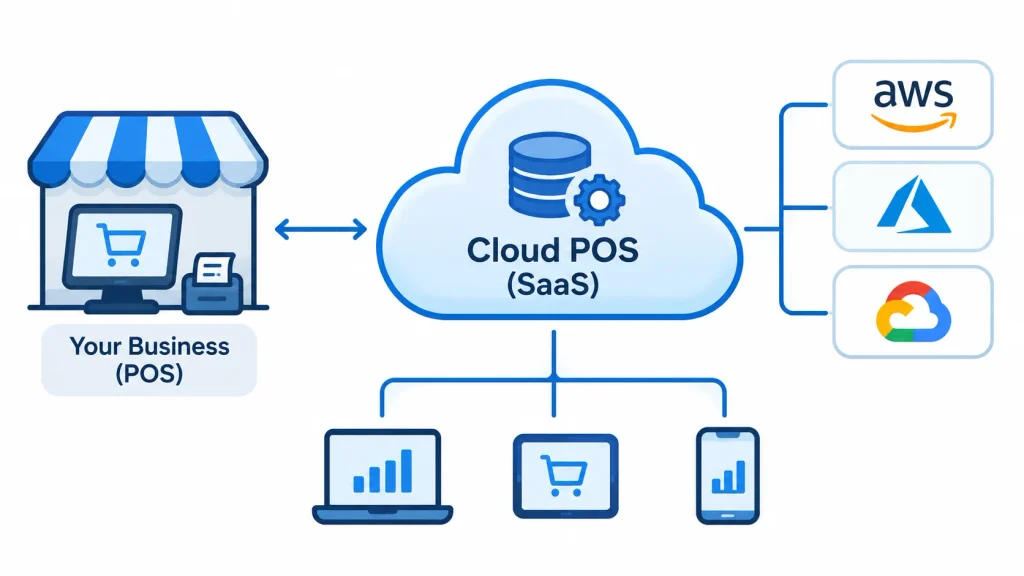
Cloud POS usually follows the software as a service (SaaS) model. The vendor hosts the software and database on cloud infrastructure, often built on providers like Amazon Web Services, Microsoft Azure, or Google Cloud.
Your terminals talk to that central database over the internet. Sales sync in near real time, so a manager can check numbers from a phone or laptop.
2. Key Features of Cloud-Based POS Systems
- Real-time sales tracking
- Inventory sync across locations: Businesses can improve stock accuracy and streamline daily operations by choosing the right inventory management software with real-time tracking, low-stock alerts, and stock movement monitoring.
- Remote management
- Automatic updates
- Reporting dashboards
- Integrations with accounting, ecommerce, and CRM tools
3. Common Examples
Square, Shopify POS, Lightspeed, Toast, and Clover are well-known cloud-based options. They aim at different markets. Square and Clover often suit small businesses, Shopify POS fits omnichannel retail, and Toast focuses on restaurants. Features and pricing change often, so check each vendor’s current documentation.
What Is a Legacy POS System?
A legacy POS system is a traditional, on-premises setup. The software runs on your own computers or a server in the back office. The database lives on-site, and your business handles upgrades and backups.
How Legacy POS Systems Work
Terminals connect to a local server over your internal network. That server stores sales and inventory data. The setup often depends on specific hardware that the software was built for.
Key Features of Legacy POS Systems
- Local transaction processing
- On-site data storage
- Fixed hardware
- Traditional, often locally managed reporting
- Manually applied software updates
Common Limitations
Legacy systems often struggle with remote access, multi-location sync, and modern integrations. Upgrades can be slow and costly. Your team also carries more of the maintenance and backup work.
Cloud-Based POS vs Legacy POS: Key Differences Explained
Here is the quick comparison:
| Factor | Cloud-Based POS | Legacy POS |
| Architecture | Cloud-hosted | On-premises |
| Data storage | Remote cloud infrastructure | Local servers or devices |
| Accessibility | Remote and local | Mostly on-site |
| Upfront cost | Often lower | Often higher |
| Pricing | Subscription or usage-based | License plus maintenance |
| Updates | Usually vendor-managed | Often manual |
| Scalability | Generally easier | Depends on infrastructure |
| Integrations | API-based, broad | Depends on compatibility |
| Security | Shared responsibility | Mostly your responsibility |
| Hardware | Flexible supported devices | Often fixed |
| Reporting | Centralized | Often local |
| Internet dependency | Varies by offline features | Can run on a local network |
Let’s look at each factor.
1. Data Storage and Management
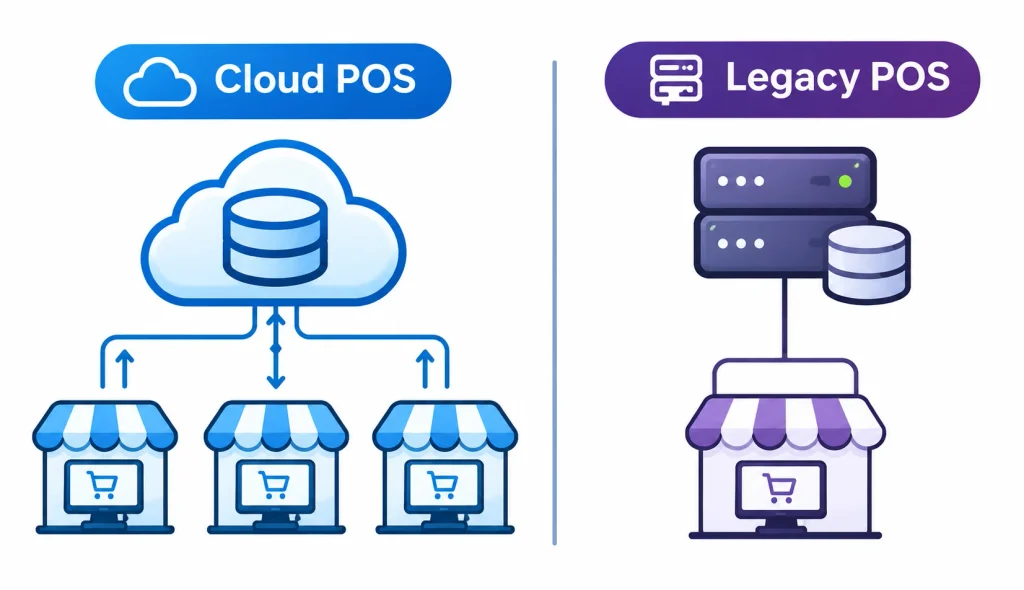
Cloud POS keeps one central database. Every terminal and location reads from and writes to it. Legacy POS keeps data on a local server, which is simple for one store but harder to combine across several.
2. Accessibility and Remote Management
With cloud POS, an owner can check sales or edit a menu from home. Legacy systems often need someone on-site, or a remote-access setup that someone must secure and maintain.
3. Initial Costs and Ongoing Expenses
Cloud POS typically has lower upfront costs and a recurring fee. Legacy POS typically has a larger upfront purchase plus support costs. We break this down in the cost section below.
4. Software Updates and Maintenance
Cloud vendors usually push updates automatically. Legacy updates often mean scheduling downtime and sometimes paying for upgrades. Skipped updates can leave security gaps.
5. Scalability and Business Expansion
Adding a terminal or store to a cloud system is often a matter of adding a subscription and a device. With legacy POS, you may need more hardware, network work, and a way to sync data between sites.
6. Integration With Business Applications
Cloud POS platforms commonly offer APIs for accounting, CRM, ERP, and ecommerce tools. Connecting POS transactions with cloud-based accounting software can simplify financial recordkeeping, automate transaction tracking, and improve financial reporting. Legacy systems may integrate, but older ones often need custom work or middleware. Always confirm the specific integrations you need before you buy.
7. Data Security and Backup
Both can be secure or insecure. The difference is who does the work. Cloud vendors typically handle server security and backups, while you manage staff access and devices. With legacy POS, you handle nearly all of it. See the security section for details.
8. Hardware Requirements and Compatibility
Cloud POS often runs on tablets, phones, or standard computers, though many vendors require specific card readers or printers. Legacy POS may rely on older, proprietary hardware that is harder to replace.
9. Reporting and Business Analytics
Cloud POS gives you dashboards that combine all locations. Legacy POS reports are often generated per site and may need manual consolidation.
10. Offline Functionality and Internet Dependency
This is where the choice gets practical. Legacy POS can keep running on a local network without the internet, though card payments still need a connection. Cloud POS offline capability varies by vendor and payment type. We cover it fully below.
11. Reliability and System Downtime
Legacy systems fail when your local server fails. Cloud systems fail when the internet or the vendor’s service fails. Neither is immune. Ask how each option behaves in a failure and how quickly you can recover.
12. Customization and Flexibility
Cloud platforms often offer APIs, app marketplaces, and configurable workflows. Legacy systems can be customized too, but changes often need the original vendor or a developer.
Advantages and Disadvantages of Cloud-Based POS Systems
Advantages
- Remote business management
- Centralized data access
- Easier expansion
- Flexible hardware options
- Automatic updates
- Modern integrations
- Centralized reporting
Disadvantages
- It needs a reliable internet.
- Subscription fees recur indefinitely.
- You depend on the vendor.
- Some integrations may be limited.
- You still carry security responsibilities.
- Vendor lock-in can make switching hard.
Advantages and Disadvantages of Legacy POS Systems
Advantages
- More control over local infrastructure
- Local operation that can keep basic functions running without the internet
- Existing hardware investment is kept
- Familiar workflows for experienced staff
- No recurring software subscription in some cases
Disadvantages
- Higher infrastructure and maintenance effort
- Limited remote access
- Manual updates
- Harder to scale
- Limited integrations in older systems
- More responsibility for backups and local security
Cloud POS vs Legacy POS: Which Is More Cost-Effective?
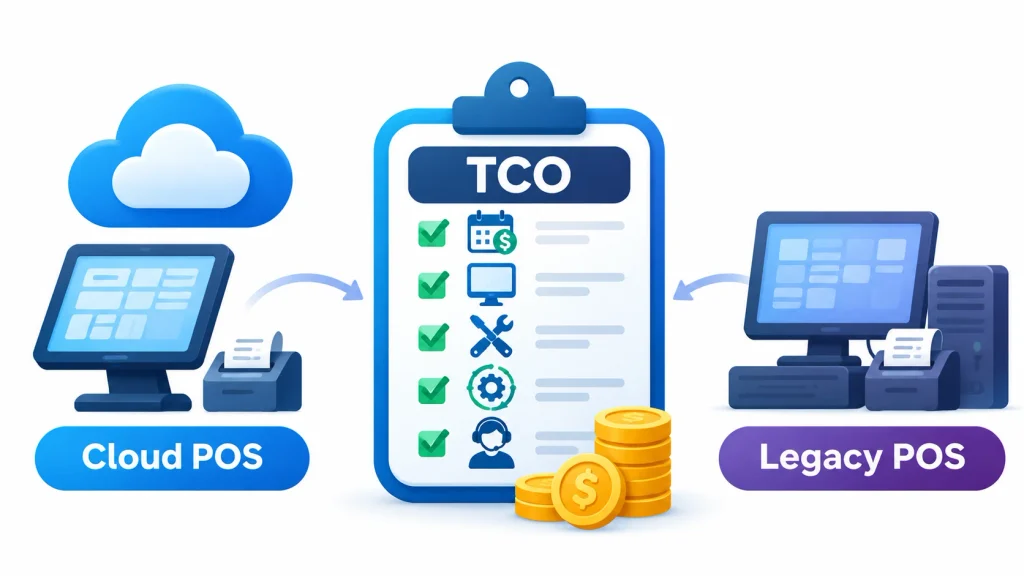
Subscription price alone doesn’t answer this. You need the total cost of ownership (TCO) over the same period.
What Goes Into TCO
- Software license or subscription
- Hardware
- Installation and setup
- Maintenance and support
- Payment processing fees
- Staff training
- Integrations
- Upgrades
Cloud POS Cost Structure
You pay a recurring fee, often per terminal, location, or feature tier. Some vendors charge extra for add-ons like loyalty or advanced reporting. Fees can add up as you add terminals and locations. Payment processing is usually a separate, ongoing cost.
Legacy POS Cost Structure
You typically pay a larger upfront cost for licenses, hardware, a server, and installation. After that come support contracts, upgrades, and IT time. Expanding means buying more hardware and doing more installation work.
Example: Five-Year Cost Comparison
The numbers below are illustrative assumptions, not market prices. Replace them with real quotes. The example is a three-terminal shop over five years. Payment processing fees are excluded from both, since they apply either way.
| Cost item | Cloud POS | Legacy POS |
| Software | $60/terminal/month × 3 × 60 months = $10,800 | $1,500/terminal license × 3 = $4,500 |
| Hardware | $600/terminal × 3 = $1,800 | $1,000/terminal × 3 = $3,000 |
| Server | None | $2,500 |
| Installation | Included | $2,000 |
| Support | Included in subscription | $675/year × 5 = $3,375 |
| Major upgrade | Included | $2,000 (one-time) |
| Five-year total | $12,600 | $17,375 |
In this scenario, the cloud is cheaper over five years. Change the assumptions and the result can flip. A business with already-paid-for hardware and low support costs may find legacy cheaper. A business with many terminals and costly add-ons may find cloud pricier.
Which Offers Better Long-Term ROI?
Look beyond cost to what the system saves you. Consider:
- Time saved on manual reports and stock counts
- Fewer stock errors
- Staff productivity
- Reduced IT maintenance
- Cost of adding new locations
Measure these against your own baseline. Avoid relying on vendor claims that don’t show how they were calculated.
Is Cloud POS More Secure Than Legacy POS?
Not automatically. Security depends on the vendor, your configuration, and your habits. Be wary of anyone who says one model is always safer.
Cloud POS Security Features
Good cloud vendors typically offer:
- Encryption in transit and at rest
- Multi-factor authentication (MFA)
- Role-based access control
- Automated backups
- Security monitoring and access logs
Legacy POS Security Considerations
With legacy POS, you’re responsible for:
- Network and firewall protection
- Physical security of the server
- Regular backups, tested
- Applying software patches
- Managing user permissions
Unsupported old software that no longer gets patches is one of the biggest risks.
PCI DSS and Payment Security
The Payment Card Industry Data Security Standard (PCI DSS) applies to any business that accepts card payments. The PCI Security Standards Council publishes the official requirements.
Three technologies help reduce risk:
- EMV: chip-card technology that makes card cloning harder. See EMV.
- Tokenization: replaces card numbers with a token so your system never stores the real number.
- Point-to-point or end-to-end encryption: protects card data from the card reader onward.
Using a certified payment terminal and a processor that handles card data can shrink your compliance scope. It doesn’t remove it. Ask your vendor and processor what you are still responsible for.
Practical Security Habits
- Turn on MFA for every admin account.
- Give staff only the access they need.
- Remove access when employees leave.
- Keep software and devices updated.
- Use a separate network for payment devices.
- Test your backups.
- Change default passwords.
What Happens When a Cloud POS Loses Internet Connectivity?
This is the question most owners worry about, and the honest answer is “it depends.”
1. Can Cloud POS Process Transactions Offline?
Some cloud POS systems have an offline mode that lets you keep recording sales. Others have limited features offline or none. Even with offline mode, card payments are the tricky part. Some vendors allow offline card acceptance with limits and risk, and others don’t. Cash sales are usually the easiest to keep running.
2. How Offline Queuing Works
In offline mode, the device stores transactions locally in a queue. Once the connection returns, it sends them to the cloud database in order.
3. What Happens When the Connection Returns
The system uploads queued sales, updates inventory, and reconciles totals. For offline card payments, the authorization happens after the fact, which means a declined card can slip through. Ask your vendor how it handles that risk and who bears the loss.
4. How to Reduce Downtime
- Add a backup internet connection, such as a mobile data failover
- Use redundant network equipment where it matters
- Keep a UPS (battery backup) on routers and terminals
- Know your vendor’s offline limits and support hours
- Write a simple business continuity plan, so staff know what to do. See business continuity planning.
When Should You Switch From Legacy POS to Cloud POS?
Signs It’s Time to Upgrade
- Frequent crashes or slow performance
- Hard-to-find parts or support
- Limited reporting
- No integration with your accounting or online store
- Costly upgrade quotes
- Trouble managing more than one location
Businesses That Benefit Most From Cloud POS
- Retail stores
- Restaurants
- Supermarkets
- Hospitality businesses
- Multi-location companies
- Growing ecommerce businesses
When Keeping Legacy POS May Make Sense
If your system is stable, supported, and meets your needs, replacing it may not pay off. This is especially true if you run one location, don’t need integrations, and have already paid for the hardware. Reassess when support ends, security patches stop, or your needs change.
How to Migrate From Legacy POS to Cloud-Based POS
A smooth migration depends on planning. Here is a practical order.
Step 1: Audit Your Existing POS
List your hardware, software, integrations, reports, and how staff use the system today.
Step 2: Define Your Requirements
Write down what you need: integrations, offline behavior, reports, number of terminals, and payment methods. Separate must-haves from nice-to-haves.
Step 3: Evaluate Providers
Compare vendors against your list. Ask about total pricing, offline capability, data export, contract terms, and support hours. Request a demo using your own real scenarios.
Step 4: Prepare and Migrate Your Data
Clean up products, prices, customers, and stock counts before you import them. Check what the new system can import and what you will need to re-enter. Keep a backup of the old data.
Step 5: Configure Hardware and Integrations
Check that your printers, scanners, and card readers work with the new software. Connect accounting and ecommerce tools.
Step 6: Test Everything
Run test sales, refunds, discounts, and end-of-day closes. Check that inventory updates and reports match. Test offline mode by unplugging the internet.
Step 7: Train Your Team
Train staff before launch, not on launch day. Give them a short cheat sheet and let them practice.
Step 8: Launch and Monitor
Many businesses start at one location or run the old system briefly in parallel. Launch on a quiet day, and keep extra support available. Watch for problems in the first few weeks.
Migration checklist:
- Backup of old data stored safely
- Hardware compatibility confirmed
- Integrations connected and tested
- Payment processing tested
- Offline mode tested
- Staff trained
- Rollback plan ready
Migration time varies with business size, data volume, and integrations. A simple single-store setup can be quick, while a multi-location business takes longer. Ask your vendor for a realistic timeline.
Which System Is Right for Your Business?
Here are some realistic scenarios.
1. Small Retail Shop
A single clothing store wants low upfront costs and easy reports. A cloud POS with a monthly subscription often fits, since it avoids buying a server.
2. Retail Stores
Shops that sell in-store and online benefit from shared inventory. Look for barcode scanning support and ecommerce sync.
3. Restaurants
A restaurant that wants to connect billing, kitchen displays, online orders, and delivery apps usually benefits from integrations. Check how the system handles table management and what happens during a connection drop in the middle of a dinner rush.
4. Multi-Location Businesses
A chain of 15 stores needs central inventory and reporting. Cloud sync lets a manager see stock across all locations without calling each store.
5. Businesses With Poor Internet
If your connection is weak or unreliable, prioritize strong offline features or a hybrid system. Test the vendor’s offline mode in your actual location.
6. Established Business With Working Legacy POS
If you’ve invested heavily in a system that works, replacement may not be justified yet. Plan the move for when support ends or your needs outgrow the system.
What Is a Hybrid POS System?
A hybrid POS combines local processing with cloud sync. A local server or device handles transactions, then syncs data to the cloud.
1. How It Works
Sales run through a local component, so the store keeps operating if the internet drops. The system syncs to the cloud when connected, giving you remote reports and central data.
2. Benefits
- Local continuity during outages
- Centralized reporting
- Flexible connectivity
- Less dependence on constant internet access for core functions
3. Cloud vs Legacy vs Hybrid
| Factor | Cloud POS | Legacy POS | Hybrid POS |
| Data location | Cloud | Local | Local plus cloud |
| Remote access | Strong | Limited | Good |
| Offline operation | Varies | Local network | Typically strong |
| Maintenance | Mostly vendor | Mostly you | Shared |
| Complexity | Lower | Medium | Higher |
| Best for | Growth, multi-site | Stable single site | Mixed needs |
Frequently Asked Questions
What is the main difference between cloud POS and legacy POS?
Cloud POS stores and syncs data on remote servers and is accessed over the internet. Legacy POS runs on local servers and computers that your business owns and maintains.
Is cloud POS better than traditional POS?
Cloud POS is generally better for remote access, integrations, and multi-location management. Traditional POS can suit businesses with stable local setups and simple needs.
Is cloud POS cheaper than legacy POS?
Often cheaper upfront, but not always over time. Compare total cost of ownership, including subscriptions, hardware, processing fees, and add-ons, over the same period.
Can cloud POS work without the internet?
Some can, with limits. Many allow offline sales and sync later, but offline card payments vary by vendor. Confirm this before you buy.
Are cloud-based POS systems secure?
They can be, but it depends on the vendor and your setup. Look for encryption, MFA, role-based access, backups, and PCI DSS compliance.
Can I use my existing hardware with cloud POS?
Sometimes. Many cloud systems support standard devices but require specific card readers or printers. Check the vendor’s compatibility list.
How long does migration take?
It depends on your size, data, and integrations. Small setups can move quickly, while larger multi-site businesses need more time and testing.
What are the disadvantages of cloud-based POS?
Internet dependence, recurring fees, vendor dependence, possible lock-in, and varying offline features.
Final Verdict: Cloud-Based POS vs Legacy POS Systems
There is no single winner in the cloud-based POS vs legacy POS systems debate. The right answer depends on your business.
Choose cloud POS if you want flexibility, integrations, central reporting, and room to grow. Keep legacy POS if your system is stable, your needs are simple, and replacing it costs more than it saves. Consider hybrid if you want cloud reporting but can’t risk losing sales during an outage.
Before you decide, price the full five-year cost, test offline behavior in your own location, and ask about data export. Those three checks prevent most regrets.
