Day: November 10, 2026

  • 6 Best AI Podcast Editors for Audio and Video Creators in 2026

    6 Best AI Podcast Editors for Audio and Video Creators in 2026

    Podcasting has evolved beyond recording conversations and publishing audio episodes. Many creators now produce video podcasts, interview shows, educational discussions, and live conversations that can be repurposed into content for YouTube, Instagram, TikTok, and other platforms.

    However, producing a podcast involves several stages beyond recording. Editors need to synchronize camera angles, remove unnecessary pauses, improve voice quality, balance background music, add captions, and prepare shorter clips for social media. Managing all these tasks manually can take several hours, particularly when episodes involve multiple speakers and recording tracks.

    AI-powered podcast editors are changing this process by automating repetitive editing tasks and making post-production more accessible. Some platforms focus on transcript-based editing, while others specialize in audio cleanup, multicamera synchronization, or creating social media highlights.

    The right choice depends on whether you primarily produce audio podcasts, video interviews, or complete podcast episodes with multiple content formats.

    Here are six AI podcast editors worth considering in 2026.

    How We Selected These AI Podcast Editors

    We considered the editing capabilities, AI automation, audio enhancement, video support, multicamera functionality, and content repurposing features of each platform.

    We also looked at how much manual control creators retain after using AI features. A useful podcast editor should help reduce repetitive work without making it difficult to correct edits, adjust audio, or refine the final episode.

    The list includes full podcast editing environments as well as specialized tools that handle important parts of audio post-production.

    Best AI Podcast Editors at a Glance

    ToolBest forMain strength
    Invideo Podcast EditorAudio and video podcast editingAI-assisted editing on a multitrack timeline
    DescriptTranscript-based editingEdit audio and video by editing text
    RiversideRemote podcast recordingLocal recording and AI-assisted editing
    Adobe PodcastAudio enhancementAI speech cleanup
    Podcastle (now Async)Recording and editingBrowser-based podcast production
    CleanvoiceAudio cleanupRemoving fillers, silences, and unwanted sounds

    1. Invideo Podcast Editor: AI Audio and Video Podcast Editing
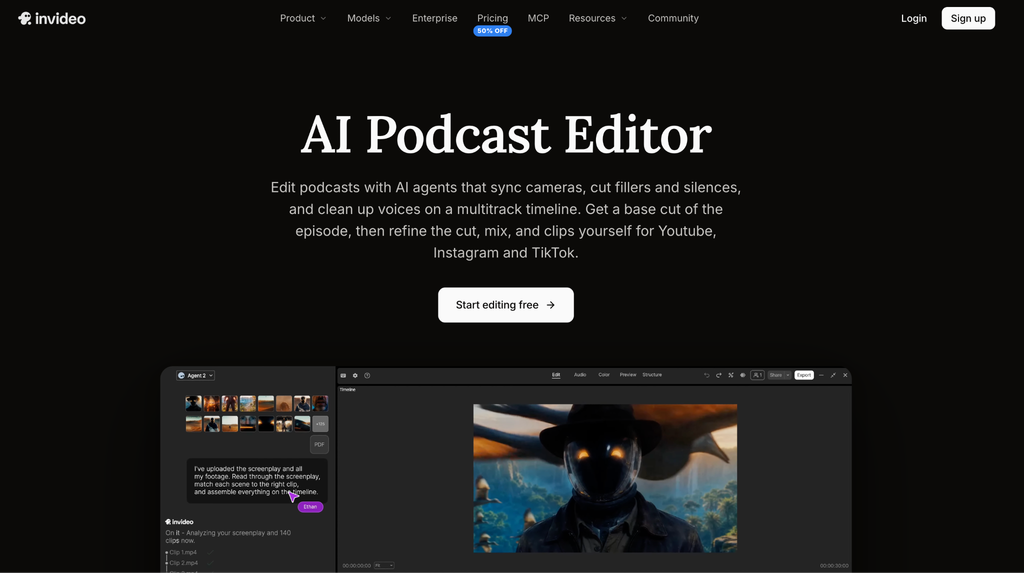
    Invideo’s Podcast Editor combines AI editing agents with a professional multitrack timeline, helping creators manage different parts of podcast production within one editing environment. Instead of manually reviewing every recording, users can upload their podcast footage and microphone audio files, describe the edit they want, and let an AI agent assemble an editable first cut.

    One of its useful capabilities is multicamera synchronization. The agent can align different camera recordings with a selected audio source and switch between camera angles based on who is speaking. It can also remove fillers, silences, and repeated lines while allowing creators to review and restore individual cuts whenever needed.

    Audio editing is another important part of the platform. Creators can use voice isolation and noise reduction to clean speaker tracks, while automatic leveling helps balance different voices. Background music can also be lowered beneath speech, with loudness metering available to check audio levels before export.

    For video podcasters, the editor can create social media highlights based on requested topics, clip lengths, and formats. It also supports editable captions, guest name titles, topic cards, and B-roll placement. Once the AI agent completes the initial work, creators can adjust camera switches, trims, and audio levels directly on the timeline.

    The broader invideo editor environment also provides professional editing controls, including color grading, keyframes, and transitions. This makes it useful for creators who want to continue refining their podcast footage rather than relying only on automated edits.

    Key features:

    • AI-assisted episode assembly
    • Multicamera synchronization
    • Filler and silence removal
    • Voice isolation and audio leveling
    • Editable captions and chapter markers
    • Social media highlight creation
    • Manual multitrack timeline editing

    Best for: Podcasters, interview creators, and video production teams that want AI assistance with editing full episodes and preparing social media clips.

    2. Descript: Best for Transcript-Based Podcast Editing

    Descript offers a different approach to podcast editing by allowing creators to edit audio and video through text transcripts. After uploading a recording, the platform generates a transcript that users can modify like a document. Removing a sentence from the transcript also removes the corresponding section from the recording.

    Its AI features include filler-word removal, silence editing, and Studio Sound, which helps improve voice clarity by reducing background noise and echo. Descript also offers Underlord, its AI co-editor, which can perform editing tasks based on instructions and help generate shorter clips from longer recordings.

    This approach is particularly useful for interview-based podcasts, educational discussions, webinars, and talking-head videos where the spoken conversation is the main focus. Creators can search transcripts, locate specific statements, remove unwanted sections, and prepare content without constantly scrubbing through the timeline.

    Descript also supports video editing, captions, and social content creation. However, creators who prefer working primarily through a traditional multitrack timeline may need time to adjust to its transcript-first approach.

    Key features:

    • Transcript-based audio and video editing
    • AI filler-word removal
    • Studio Sound audio enhancement
    • AI-assisted clip creation
    • Captions and transcription
    • AI co-editor through Underlord

    Best for: Podcasters, educators, and interview creators who want to edit spoken content directly through transcripts.

    3. Riverside: Best for Remote Podcast Recording and Editing

    Riverside is designed for creators who record podcasts and interviews with remote guests. Its main strength is local recording, which captures each participant’s audio and video on their own device rather than relying entirely on the quality of the internet connection during the conversation.

    This approach helps preserve recording quality even when participants experience connection problems. Once recording is complete, creators can use its editing and AI-assisted features to prepare episodes, generate transcripts, and create shorter content from longer conversations.

    Riverside also offers Magic Clips, which helps identify interesting moments in recordings and turn them into short social media videos. Its editing environment supports text-based changes, captions, and other content preparation tasks.

    For podcast creators who regularly interview guests from different locations, having recording and post-production capabilities in one platform can simplify the production process. However, its primary strength is remote recording, so creators looking for extensive manual audio mixing or advanced video finishing may still need additional editing software.

    Key features:

    • Local audio and video recording
    • Separate participant tracks
    • Automatic transcription
    • AI-assisted social clip creation
    • Captions and text-based editing
    • Remote guest recording

    Best for: Interview podcasters, remote production teams, and creators who regularly record conversations with guests online.

    4. Adobe Podcast: Best for AI Audio Enhancement

    Adobe Podcast is a browser-based platform focused on improving spoken audio and making podcast production more accessible. One of its best-known features is Enhance Speech, which uses AI to reduce background noise and improve voice clarity in recordings.

    The platform also includes Podcast Studio, where creators can record, edit, and enhance audio and video content. Its transcript-based editing allows users to make changes to recordings by working with the text rather than manually locating every section in the audio.

    Adobe has also expanded its audio enhancement capabilities with options to adjust speech, music, and ambience separately in supported workflows. This gives creators more control when cleaning recordings that contain background noise or distracting music.

    Adobe Podcast is particularly useful when voice quality is the main concern. For example, creators recording interviews in untreated rooms or using less-than-ideal microphones can improve dialogue clarity without spending hours on manual audio processing.

    However, it is important to distinguish Adobe Podcast from a complete professional video editing application. Creators working on complex multicamera videos or detailed visual timelines may need another editor for the final production.

    Key features:

    • AI speech enhancement
    • Background noise and echo reduction
    • Browser-based recording and editing
    • Transcript-based editing
    • Audio and video file support
    • Separate recording tracks with supported plans

    Best for: Audio podcasters, interview creators, and video producers who need cleaner dialogue and accessible audio editing.

    5. Podcastle (Now Async): Best for Browser-Based Podcast Production

    Podcastle, now operating under the Async name, provides a browser-based environment for recording and editing podcasts. It combines recording capabilities with audio enhancement and editing features, making it useful for creators who want to manage several production tasks without installing complex desktop software.

    Its AI-assisted features include Magic Dust for improving audio quality, noise reduction, transcription, and tools for creating spoken content. The platform also supports recording remote interviews and working with audio and video content.

    For independent podcasters and small teams, this combination can simplify the process of recording conversations, cleaning audio, and preparing episodes for publishing. Its accessible interface also makes it suitable for creators who are still learning podcast production.

    However, its feature availability and usage limits depend on the current plan. Creators who need detailed professional audio mixing or more advanced multicamera editing should check whether the available controls meet their production requirements.

    Key features:

    • Browser-based podcast recording
    • Audio and video editing
    • AI audio enhancement through Magic Dust
    • Noise reduction
    • Transcription
    • AI voice and content tools

    Best for: Independent podcasters and small teams looking for an accessible recording and editing environment.

    6. Cleanvoice: Best for Removing Fillers and Unwanted Audio

    Cleanvoice is an AI-powered audio and video editing platform designed to reduce the manual work involved in cleaning podcast recordings. It focuses on identifying and removing unwanted elements such as filler words, mouth sounds, breathing, stutters, long pauses, and background noise.

    Creators can upload their recordings and let the platform process the audio automatically. It can also generate transcripts, summarize podcast episodes, and provide social content suggestions, making it useful for creators who want to prepare recordings for further editing and distribution.

    Its main advantage is that it focuses on repetitive audio cleanup tasks. For example, an interview containing frequent filler words and long pauses can be processed without manually listening to every section and making individual cuts.

    However, Cleanvoice is more specialized than a complete multitrack podcast production environment. Creators who need to synchronize multiple camera angles, arrange complex video sequences, or perform detailed visual editing may need to combine it with a separate editor.

    Key features:

    • Filler-word removal
    • Silence and pause detection
    • Mouth sound and breath removal
    • Background noise reduction
    • Audio transcription
    • Podcast summaries and social content suggestions

    Best for: Audio podcasters and editors who want to automate repetitive cleanup before completing the final edit.

    How to Choose the Right AI Podcast Editor

    The best podcast editor depends on the type of show you produce and which part of production takes the most time.

    If you record video podcasts with multiple cameras, look for an editor that supports camera synchronization, multitrack editing, and social clip creation. If your episodes are primarily audio-based, transcription, filler removal, and voice enhancement may be more important.

    Creators who work with interviews and spoken content may prefer transcript-based editing, while teams producing complete video podcasts may benefit from an editor that combines AI assistance with a professional timeline.

    It is also worth considering whether the platform supports exporting separate audio tracks, editable projects, and social media versions. These options can make a difference when your podcast needs to be reused across multiple platforms.

    Final Thoughts

    AI podcast editors are making audio and video production more manageable by reducing the time spent on repetitive post-production tasks. From cleaning dialogue and removing filler words to synchronizing camera angles and creating social media highlights, these tools support different parts of the podcast production process.

    Each platform has a different focus. Descript is useful for transcript-based editing, Riverside is strong for remote recording, Adobe Podcast focuses on speech enhancement, and Cleanvoice specializes in audio cleanup.

    For creators who want to manage both audio and video podcast editing within an editable timeline, invideo’s podcast editor offers a combination of AI-assisted assembly, multicamera synchronization, audio cleanup, and social clip creation. Its approach allows creators to delegate repetitive editing work while continuing to refine the episode manually.

    The right choice ultimately depends on your production requirements, the amount of automation you need, and how much control you want over the finished podcast.

    Frequently Asked Questions

    1. What is the best AI podcast editor in 2026?

    The best option depends on your production needs. Invideo’s podcast editor is worth considering for AI-assisted audio and video editing with multicamera synchronization and timeline control. Descript is useful for transcript-based editing, while Riverside is particularly suited to remote podcast recording.

    2. Can AI automatically edit an entire podcast episode?

    Some AI podcast editors can assemble an initial cut, remove filler words and silences, and organize footage based on instructions. However, creators should review the result and make further adjustments to preserve context, pacing, and audio quality.

    3. Which AI podcast editor is best for video podcasts?

    Invideo’s podcast editor is a relevant option for video podcasts because it supports multicamera synchronization, speaker-based camera switching, audio cleanup, editable captions, and social highlight creation within a multitrack timeline.

    4. Can AI podcast editors remove filler words and long pauses?

    Yes. Several platforms, including invideo podcast editor, Descript, and Cleanvoice, provide features for detecting and removing unnecessary fillers or silences. The level of automation and manual control varies between products.

    5. Can I create social media clips from a full podcast using AI?

    Yes. Some podcast editors can identify interesting moments and prepare shorter clips for platforms such as YouTube, Instagram, and TikTok. Creators can specify topics, preferred clip lengths, and formats, depending on the platform’s capabilities.

    6. What is the difference between AI podcast editing and traditional podcast editing?

    Traditional editing requires creators to manually review recordings, make cuts, clean audio, and arrange different tracks. AI podcast editing automates or assists with some of these operations, allowing creators to focus more on reviewing content and refining the final episode.

    7. Can AI podcast editors improve audio quality?

    Yes. AI-powered features can reduce background noise, improve voice clarity, remove unwanted sounds, and balance speaker levels. However, the results depend on the original recording quality and the capabilities of the particular platform.

    8. Are AI podcast editors suitable for beginners?

    Yes. Many AI podcast editors offer browser-based interfaces and automated features that make common editing tasks easier to manage. Beginners can start with basic recording cleanup and gradually explore transcription, multicamera editing, and content repurposing.
  • Cloud-Based POS vs Legacy POS Systems: Key Differences, Costs, and Which Is Better?

    Cloud-Based POS vs Legacy POS Systems: Key Differences, Costs, and Which Is Better?

    Cloud POS usually suits businesses that need remote access, integrations, and multi-location control. Legacy POS can still work well for a single site with stable local infrastructure and simple needs. A hybrid system sits in between. The right choice depends on your costs, connectivity, and growth plans.

    If you run a shop or restaurant, your point-of-sale system touches almost everything: sales, stock, staff, and cash. Picking the wrong one hurts every day.

    The debate over cloud-based POS vs legacy POS systems is often reduced to “cloud is modern, legacy is old.” That’s too simple. This guide covers real costs, offline behavior, security, and migration, so you can make a decision you won’t regret.

    What Is a POS System and How Does It Work?

    A point-of-sale (POS) system is where a customer pays and the sale gets recorded. Today it also tracks inventory, staff activity, and customer data.

    Key Components of a POS System

    Most setups include these parts:

    • POS software
    • A terminal (till, tablet, or touchscreen)
    • A payment terminal or card reader
    • Barcode scanner and receipt printer
    • Cash drawer
    • Inventory and customer management tools

    How Does a POS System Process a Sale?

    The flow is the same whatever the architecture:

    1. The cashier selects items or services.
    2. The system calculates prices.
    3. Taxes and discounts are applied.
    4. The payment is authorized.
    5. The sale is recorded.
    6. A receipt is printed or sent.
    7. Inventory updates.

    What differs is where these steps run and where the data lives.

    What Is a Cloud-Based POS System?

    A cloud-based POS system stores and syncs business data on remote servers. Authorized users manage sales, stock, payments, and reports from internet-connected devices. You use it as a service rather than owning the software and servers yourself.

    1. How Cloud-Based POS Software Works

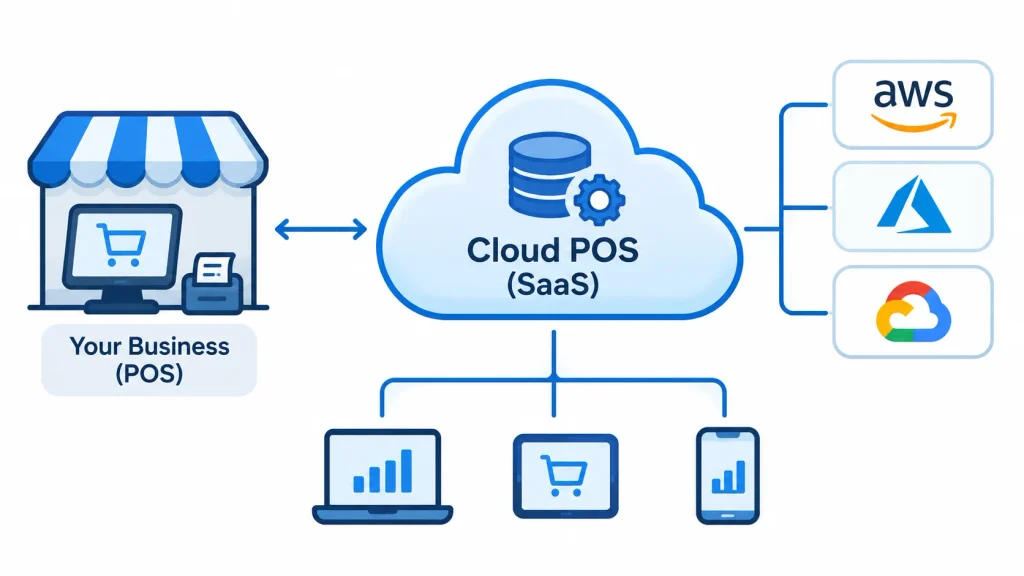
    Diagram showing how cloud-based POS software connects retail businesses to cloud infrastructure using AWS, Microsoft Azure, and Google Cloud for centralized data management.

    Cloud POS usually follows the software as a service (SaaS) model. The vendor hosts the software and database on cloud infrastructure, often built on providers like Amazon Web Services, Microsoft Azure, or Google Cloud.

    Your terminals talk to that central database over the internet. Sales sync in near real time, so a manager can check numbers from a phone or laptop.

    2. Key Features of Cloud-Based POS Systems

    • Real-time sales tracking
    • Inventory sync across locations: Businesses can improve stock accuracy and streamline daily operations by choosing the right inventory management software with real-time tracking, low-stock alerts, and stock movement monitoring.
    • Remote management
    • Automatic updates
    • Reporting dashboards
    • Integrations with accounting, ecommerce, and CRM tools

    3. Common Examples

    Square, Shopify POS, Lightspeed, Toast, and Clover are well-known cloud-based options. They aim at different markets. Square and Clover often suit small businesses, Shopify POS fits omnichannel retail, and Toast focuses on restaurants. Features and pricing change often, so check each vendor’s current documentation.

    What Is a Legacy POS System?

    A legacy POS system is a traditional, on-premises setup. The software runs on your own computers or a server in the back office. The database lives on-site, and your business handles upgrades and backups.

    How Legacy POS Systems Work

    Terminals connect to a local server over your internal network. That server stores sales and inventory data. The setup often depends on specific hardware that the software was built for.

    Key Features of Legacy POS Systems

    • Local transaction processing
    • On-site data storage
    • Fixed hardware
    • Traditional, often locally managed reporting
    • Manually applied software updates

    Common Limitations

    Legacy systems often struggle with remote access, multi-location sync, and modern integrations. Upgrades can be slow and costly. Your team also carries more of the maintenance and backup work.

    Cloud-Based POS vs Legacy POS: Key Differences Explained

    Here is the quick comparison:

    FactorCloud-Based POSLegacy POS
    ArchitectureCloud-hostedOn-premises
    Data storageRemote cloud infrastructureLocal servers or devices
    AccessibilityRemote and localMostly on-site
    Upfront costOften lowerOften higher
    PricingSubscription or usage-basedLicense plus maintenance
    UpdatesUsually vendor-managedOften manual
    ScalabilityGenerally easierDepends on infrastructure
    IntegrationsAPI-based, broadDepends on compatibility
    SecurityShared responsibilityMostly your responsibility
    HardwareFlexible supported devicesOften fixed
    ReportingCentralizedOften local
    Internet dependencyVaries by offline featuresCan run on a local network

    Let’s look at each factor.

    1. Data Storage and Management

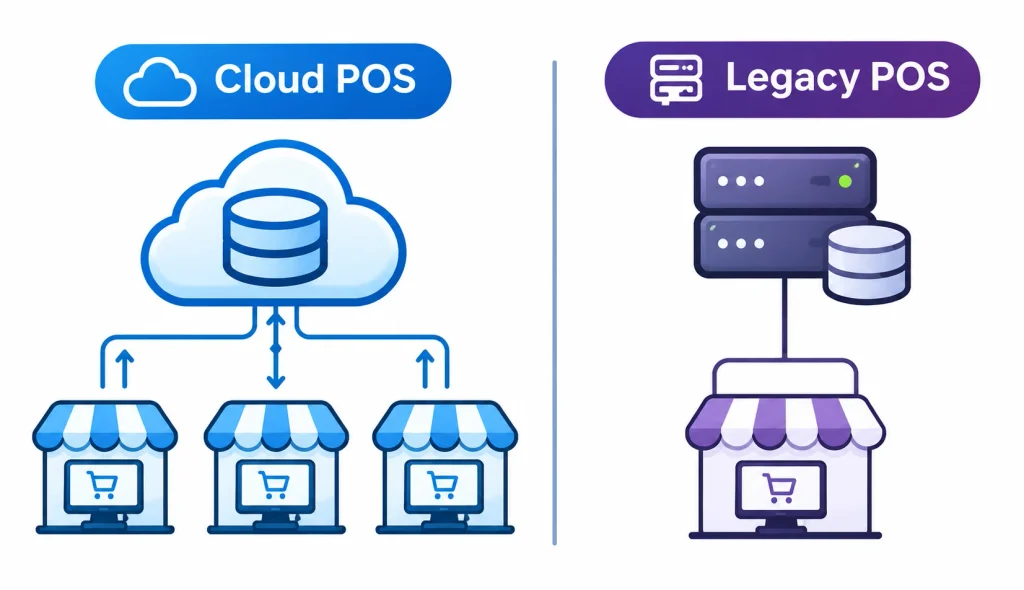
    Cloud POS vs legacy POS data storage comparison showing centralized cloud database connected to multiple stores versus a local server managing data for a single store.

    Cloud POS keeps one central database. Every terminal and location reads from and writes to it. Legacy POS keeps data on a local server, which is simple for one store but harder to combine across several.

    2. Accessibility and Remote Management

    With cloud POS, an owner can check sales or edit a menu from home. Legacy systems often need someone on-site, or a remote-access setup that someone must secure and maintain.

    3. Initial Costs and Ongoing Expenses

    Cloud POS typically has lower upfront costs and a recurring fee. Legacy POS typically has a larger upfront purchase plus support costs. We break this down in the cost section below.

    4. Software Updates and Maintenance

    Cloud vendors usually push updates automatically. Legacy updates often mean scheduling downtime and sometimes paying for upgrades. Skipped updates can leave security gaps.

    5. Scalability and Business Expansion

    Adding a terminal or store to a cloud system is often a matter of adding a subscription and a device. With legacy POS, you may need more hardware, network work, and a way to sync data between sites.

    6. Integration With Business Applications

    Cloud POS platforms commonly offer APIs for accounting, CRM, ERP, and ecommerce tools. Connecting POS transactions with cloud-based accounting software can simplify financial recordkeeping, automate transaction tracking, and improve financial reporting. Legacy systems may integrate, but older ones often need custom work or middleware. Always confirm the specific integrations you need before you buy.

    7. Data Security and Backup

    Both can be secure or insecure. The difference is who does the work. Cloud vendors typically handle server security and backups, while you manage staff access and devices. With legacy POS, you handle nearly all of it. See the security section for details.

    8. Hardware Requirements and Compatibility

    Cloud POS often runs on tablets, phones, or standard computers, though many vendors require specific card readers or printers. Legacy POS may rely on older, proprietary hardware that is harder to replace.

    9. Reporting and Business Analytics

    Cloud POS gives you dashboards that combine all locations. Legacy POS reports are often generated per site and may need manual consolidation.

    10. Offline Functionality and Internet Dependency

    This is where the choice gets practical. Legacy POS can keep running on a local network without the internet, though card payments still need a connection. Cloud POS offline capability varies by vendor and payment type. We cover it fully below.

    11. Reliability and System Downtime

    Legacy systems fail when your local server fails. Cloud systems fail when the internet or the vendor’s service fails. Neither is immune. Ask how each option behaves in a failure and how quickly you can recover.

    12. Customization and Flexibility

    Cloud platforms often offer APIs, app marketplaces, and configurable workflows. Legacy systems can be customized too, but changes often need the original vendor or a developer.

    Advantages and Disadvantages of Cloud-Based POS Systems

    Advantages

    1. Remote business management
    2. Centralized data access
    3. Easier expansion
    4. Flexible hardware options
    5. Automatic updates
    6. Modern integrations
    7. Centralized reporting

    Disadvantages

    1. It needs a reliable internet.
    2. Subscription fees recur indefinitely.
    3. You depend on the vendor.
    4. Some integrations may be limited.
    5. You still carry security responsibilities.
    6. Vendor lock-in can make switching hard.

    Advantages and Disadvantages of Legacy POS Systems

    Advantages

    1. More control over local infrastructure
    2. Local operation that can keep basic functions running without the internet
    3. Existing hardware investment is kept
    4. Familiar workflows for experienced staff
    5. No recurring software subscription in some cases

    Disadvantages

    1. Higher infrastructure and maintenance effort
    2. Limited remote access
    3. Manual updates
    4. Harder to scale
    5. Limited integrations in older systems
    6. More responsibility for backups and local security

    Cloud POS vs Legacy POS: Which Is More Cost-Effective?

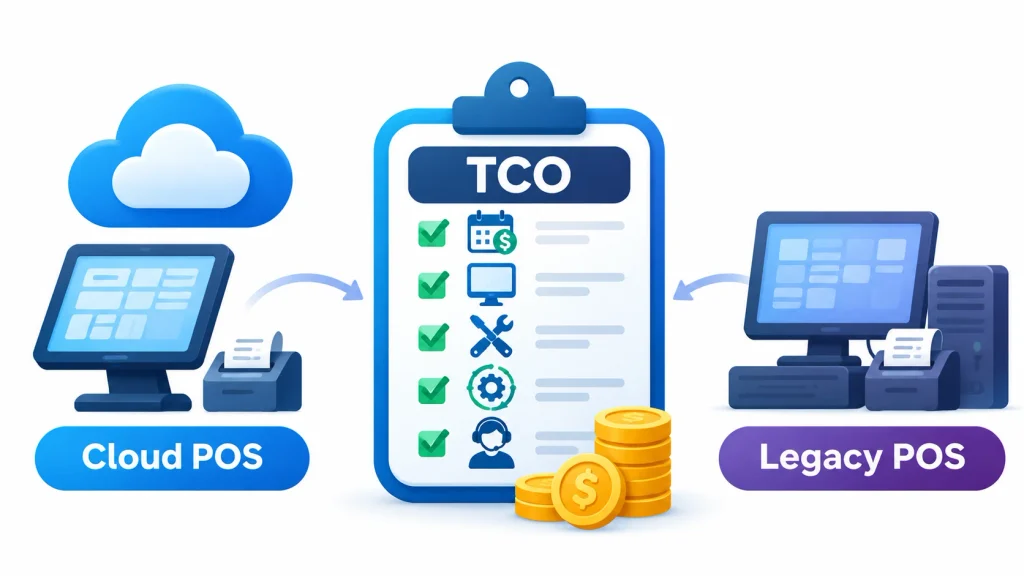
    Cloud POS vs legacy POS cost comparison illustrating total cost of ownership (TCO), including hardware, software subscriptions, maintenance, upgrades, and support expenses.

    Subscription price alone doesn’t answer this. You need the total cost of ownership (TCO) over the same period.

    What Goes Into TCO

    • Software license or subscription
    • Hardware
    • Installation and setup
    • Maintenance and support
    • Payment processing fees
    • Staff training
    • Integrations
    • Upgrades

    Cloud POS Cost Structure

    You pay a recurring fee, often per terminal, location, or feature tier. Some vendors charge extra for add-ons like loyalty or advanced reporting. Fees can add up as you add terminals and locations. Payment processing is usually a separate, ongoing cost.

    Legacy POS Cost Structure

    You typically pay a larger upfront cost for licenses, hardware, a server, and installation. After that come support contracts, upgrades, and IT time. Expanding means buying more hardware and doing more installation work.

    Example: Five-Year Cost Comparison

    The numbers below are illustrative assumptions, not market prices. Replace them with real quotes. The example is a three-terminal shop over five years. Payment processing fees are excluded from both, since they apply either way.

    Cost itemCloud POSLegacy POS
    Software$60/terminal/month × 3 × 60 months = $10,800$1,500/terminal license × 3 = $4,500
    Hardware$600/terminal × 3 = $1,800$1,000/terminal × 3 = $3,000
    ServerNone$2,500
    InstallationIncluded$2,000
    SupportIncluded in subscription$675/year × 5 = $3,375
    Major upgradeIncluded$2,000 (one-time)
    Five-year total$12,600$17,375

    In this scenario, the cloud is cheaper over five years. Change the assumptions and the result can flip. A business with already-paid-for hardware and low support costs may find legacy cheaper. A business with many terminals and costly add-ons may find cloud pricier.

    Which Offers Better Long-Term ROI?

    Look beyond cost to what the system saves you. Consider:

    • Time saved on manual reports and stock counts
    • Fewer stock errors
    • Staff productivity
    • Reduced IT maintenance
    • Cost of adding new locations

    Measure these against your own baseline. Avoid relying on vendor claims that don’t show how they were calculated.

    Is Cloud POS More Secure Than Legacy POS?

    Not automatically. Security depends on the vendor, your configuration, and your habits. Be wary of anyone who says one model is always safer.

    Cloud POS Security Features

    Good cloud vendors typically offer:

    • Encryption in transit and at rest
    • Multi-factor authentication (MFA)
    • Role-based access control
    • Automated backups
    • Security monitoring and access logs

    Legacy POS Security Considerations

    With legacy POS, you’re responsible for:

    • Network and firewall protection
    • Physical security of the server
    • Regular backups, tested
    • Applying software patches
    • Managing user permissions

    Unsupported old software that no longer gets patches is one of the biggest risks.

    PCI DSS and Payment Security

    The Payment Card Industry Data Security Standard (PCI DSS) applies to any business that accepts card payments. The PCI Security Standards Council publishes the official requirements.

    Three technologies help reduce risk:

    • EMV: chip-card technology that makes card cloning harder. See EMV.
    • Tokenization: replaces card numbers with a token so your system never stores the real number.
    • Point-to-point or end-to-end encryption: protects card data from the card reader onward.

    Using a certified payment terminal and a processor that handles card data can shrink your compliance scope. It doesn’t remove it. Ask your vendor and processor what you are still responsible for.

    Practical Security Habits

    1. Turn on MFA for every admin account.
    2. Give staff only the access they need.
    3. Remove access when employees leave.
    4. Keep software and devices updated.
    5. Use a separate network for payment devices.
    6. Test your backups.
    7. Change default passwords.

    What Happens When a Cloud POS Loses Internet Connectivity?

    This is the question most owners worry about, and the honest answer is “it depends.”

    1. Can Cloud POS Process Transactions Offline?

    Some cloud POS systems have an offline mode that lets you keep recording sales. Others have limited features offline or none. Even with offline mode, card payments are the tricky part. Some vendors allow offline card acceptance with limits and risk, and others don’t. Cash sales are usually the easiest to keep running.

    2. How Offline Queuing Works

    In offline mode, the device stores transactions locally in a queue. Once the connection returns, it sends them to the cloud database in order.

    3. What Happens When the Connection Returns

    The system uploads queued sales, updates inventory, and reconciles totals. For offline card payments, the authorization happens after the fact, which means a declined card can slip through. Ask your vendor how it handles that risk and who bears the loss.

    4. How to Reduce Downtime

    • Add a backup internet connection, such as a mobile data failover
    • Use redundant network equipment where it matters
    • Keep a UPS (battery backup) on routers and terminals
    • Know your vendor’s offline limits and support hours
    • Write a simple business continuity plan, so staff know what to do. See business continuity planning.

    When Should You Switch From Legacy POS to Cloud POS?

    Signs It’s Time to Upgrade

    • Frequent crashes or slow performance
    • Hard-to-find parts or support
    • Limited reporting
    • No integration with your accounting or online store
    • Costly upgrade quotes
    • Trouble managing more than one location

    Businesses That Benefit Most From Cloud POS

    • Retail stores
    • Restaurants
    • Supermarkets
    • Hospitality businesses
    • Multi-location companies
    • Growing ecommerce businesses

    When Keeping Legacy POS May Make Sense

    If your system is stable, supported, and meets your needs, replacing it may not pay off. This is especially true if you run one location, don’t need integrations, and have already paid for the hardware. Reassess when support ends, security patches stop, or your needs change.

    How to Migrate From Legacy POS to Cloud-Based POS

    A smooth migration depends on planning. Here is a practical order.

    Step 1: Audit Your Existing POS

    List your hardware, software, integrations, reports, and how staff use the system today.

    Step 2: Define Your Requirements

    Write down what you need: integrations, offline behavior, reports, number of terminals, and payment methods. Separate must-haves from nice-to-haves.

    Step 3: Evaluate Providers

    Compare vendors against your list. Ask about total pricing, offline capability, data export, contract terms, and support hours. Request a demo using your own real scenarios.

    Step 4: Prepare and Migrate Your Data

    Clean up products, prices, customers, and stock counts before you import them. Check what the new system can import and what you will need to re-enter. Keep a backup of the old data.

    Step 5: Configure Hardware and Integrations

    Check that your printers, scanners, and card readers work with the new software. Connect accounting and ecommerce tools.

    Step 6: Test Everything

    Run test sales, refunds, discounts, and end-of-day closes. Check that inventory updates and reports match. Test offline mode by unplugging the internet.

    Step 7: Train Your Team

    Train staff before launch, not on launch day. Give them a short cheat sheet and let them practice.

    Step 8: Launch and Monitor

    Many businesses start at one location or run the old system briefly in parallel. Launch on a quiet day, and keep extra support available. Watch for problems in the first few weeks.

    Migration checklist:

    • Backup of old data stored safely
    • Hardware compatibility confirmed
    • Integrations connected and tested
    • Payment processing tested
    • Offline mode tested
    • Staff trained
    • Rollback plan ready

    Migration time varies with business size, data volume, and integrations. A simple single-store setup can be quick, while a multi-location business takes longer. Ask your vendor for a realistic timeline.

    Which System Is Right for Your Business?

    Here are some realistic scenarios.

    1. Small Retail Shop

    A single clothing store wants low upfront costs and easy reports. A cloud POS with a monthly subscription often fits, since it avoids buying a server.

    2. Retail Stores

    Shops that sell in-store and online benefit from shared inventory. Look for barcode scanning support and ecommerce sync.

    3. Restaurants

    A restaurant that wants to connect billing, kitchen displays, online orders, and delivery apps usually benefits from integrations. Check how the system handles table management and what happens during a connection drop in the middle of a dinner rush.

    4. Multi-Location Businesses

    A chain of 15 stores needs central inventory and reporting. Cloud sync lets a manager see stock across all locations without calling each store.

    5. Businesses With Poor Internet

    If your connection is weak or unreliable, prioritize strong offline features or a hybrid system. Test the vendor’s offline mode in your actual location.

    6. Established Business With Working Legacy POS

    If you’ve invested heavily in a system that works, replacement may not be justified yet. Plan the move for when support ends or your needs outgrow the system.

    What Is a Hybrid POS System?

    A hybrid POS combines local processing with cloud sync. A local server or device handles transactions, then syncs data to the cloud.

    1. How It Works

    Sales run through a local component, so the store keeps operating if the internet drops. The system syncs to the cloud when connected, giving you remote reports and central data.

    2. Benefits

    • Local continuity during outages
    • Centralized reporting
    • Flexible connectivity
    • Less dependence on constant internet access for core functions

    3. Cloud vs Legacy vs Hybrid

    FactorCloud POSLegacy POSHybrid POS
    Data locationCloudLocalLocal plus cloud
    Remote accessStrongLimitedGood
    Offline operationVariesLocal networkTypically strong
    MaintenanceMostly vendorMostly youShared
    ComplexityLowerMediumHigher
    Best forGrowth, multi-siteStable single siteMixed needs

    Frequently Asked Questions

    What is the main difference between cloud POS and legacy POS?

    Cloud POS stores and syncs data on remote servers and is accessed over the internet. Legacy POS runs on local servers and computers that your business owns and maintains.

    Is cloud POS better than traditional POS?

    Cloud POS is generally better for remote access, integrations, and multi-location management. Traditional POS can suit businesses with stable local setups and simple needs.

    Is cloud POS cheaper than legacy POS?

    Often cheaper upfront, but not always over time. Compare total cost of ownership, including subscriptions, hardware, processing fees, and add-ons, over the same period.

    Can cloud POS work without the internet?

    Some can, with limits. Many allow offline sales and sync later, but offline card payments vary by vendor. Confirm this before you buy.

    Are cloud-based POS systems secure?

    They can be, but it depends on the vendor and your setup. Look for encryption, MFA, role-based access, backups, and PCI DSS compliance.

    Can I use my existing hardware with cloud POS?

    Sometimes. Many cloud systems support standard devices but require specific card readers or printers. Check the vendor’s compatibility list.

    How long does migration take?

    It depends on your size, data, and integrations. Small setups can move quickly, while larger multi-site businesses need more time and testing.

    What are the disadvantages of cloud-based POS?

    Internet dependence, recurring fees, vendor dependence, possible lock-in, and varying offline features.

    Final Verdict: Cloud-Based POS vs Legacy POS Systems

    There is no single winner in the cloud-based POS vs legacy POS systems debate. The right answer depends on your business.

    Choose cloud POS if you want flexibility, integrations, central reporting, and room to grow. Keep legacy POS if your system is stable, your needs are simple, and replacing it costs more than it saves. Consider hybrid if you want cloud reporting but can’t risk losing sales during an outage.

    Before you decide, price the full five-year cost, test offline behavior in your own location, and ask about data export. Those three checks prevent most regrets.

  • 10 Best Cloud POS Systems: Features, Pricing & Comparison

    10 Best Cloud POS Systems: Features, Pricing & Comparison

    Picking from the 10 best cloud POS systems of 2026 is harder than it looks. Every vendor promises quick setup and fair pricing. Few show you what you will actually pay once card processing, hardware and add-ons are included.

    This guide compares ten cloud-based point-of-sale systems on features, real costs, inventory tools, payment rules and fit for different businesses. I based the assessments on published pricing pages, vendor documentation and public user reviews. I have not hands-on tested every product, and I say so where a claim comes from the vendor.

    A cloud POS runs on software hosted online instead of a server in your back room. You can check sales, change prices and track stock from any connected device. The trade-off is that your internet connection matters more, so I cover offline mode in detail.

    10 Best Cloud POS Systems

    1. Square POS: Best Overall for Small Businesses

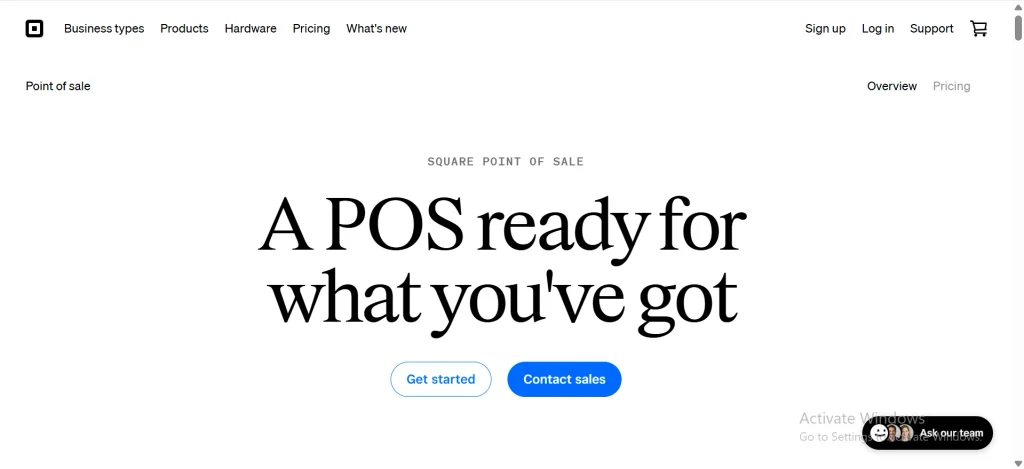
    Home page of Square POS

    Square earns the top spot because its free plan is genuinely usable. It includes core POS tools, an online store, invoicing, gift cards and a customer directory with no monthly fee.

    Pricing: On the free plan, in-person card payments cost 2.6% + 15¢. Square Plus is $49 and Premium is $149 per location, and paid plans lower the processing rates. Businesses above roughly $250,000 a year can ask for custom pricing. All plans can be changed or cancelled without contracts.

    Pros: Fast setup, wide hardware choice, offline card payments with limits.

    Cons: Flat-rate fees get expensive at higher volume, and you must use Square Payments.

    Best for: Cafés, mobile sellers and independent shops.

    2. Shopify POS: Best for Online and In-Store Selling

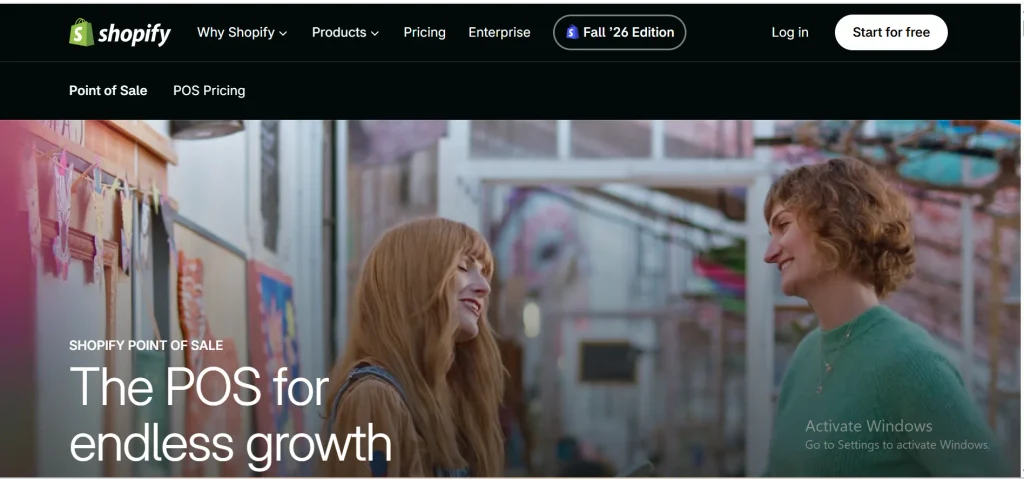
    Home page of Shopify POS

    Shopify POS suits merchants who started online. Orders, products and customers sync between your web store and your counter, so stock levels stay consistent.

    Pricing: POS Lite comes with any paid Shopify plan, and plans start at $39 a month on monthly billing. POS Pro adds 89perlocation(79 on annual billing) for stronger staff and inventory tools. One third-party estimate puts a full single-register hardware setup at roughly $876 to $1,006.

    Pros: Strong omnichannel inventory, large app ecosystem.

    Cons: Costs stack up (plan, Pro per location, hardware), and it is weak for table service.

    Best for: Online brands opening a shop or pop-up.

    3. Clover: Best for Retail Businesses

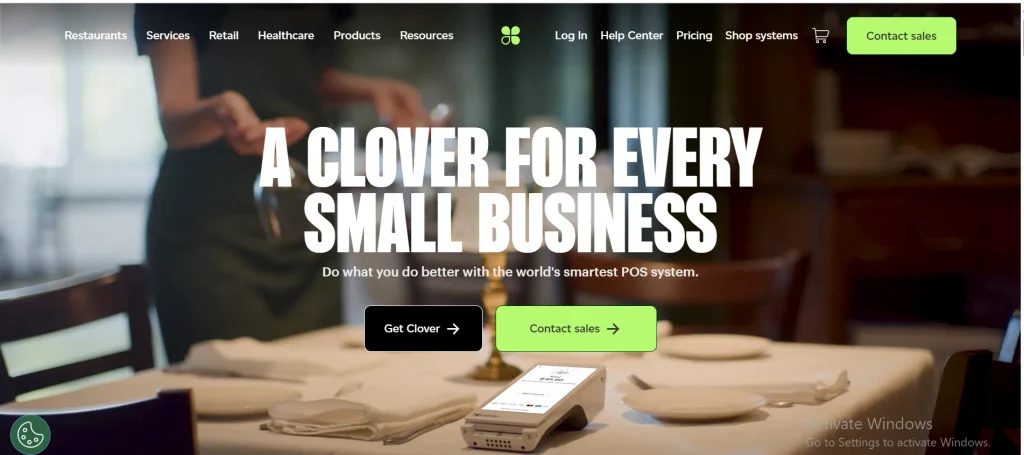
    Home page of Clover

    Clover sells hardware and software together, from handheld devices to full counter stations. Its app marketplace lets you add tools like loyalty and scheduling.

    Pricing: Hardware starts around $349 in advertised pricing. Software plans commonly run about $15 to $85 a month for retail tiers, and more for full-service restaurants. Clover is often sold through resellers, so quotes differ. Get rates, contract length and cancellation terms in writing.

    Pros: Many device options, flexible add-ons.

    Cons: Pricing varies by seller, and payment processing is tied to the Clover setup.

    Best for: Retail stores and small hospitality businesses.

    4. Lightspeed: Best for Multi-Location Retail

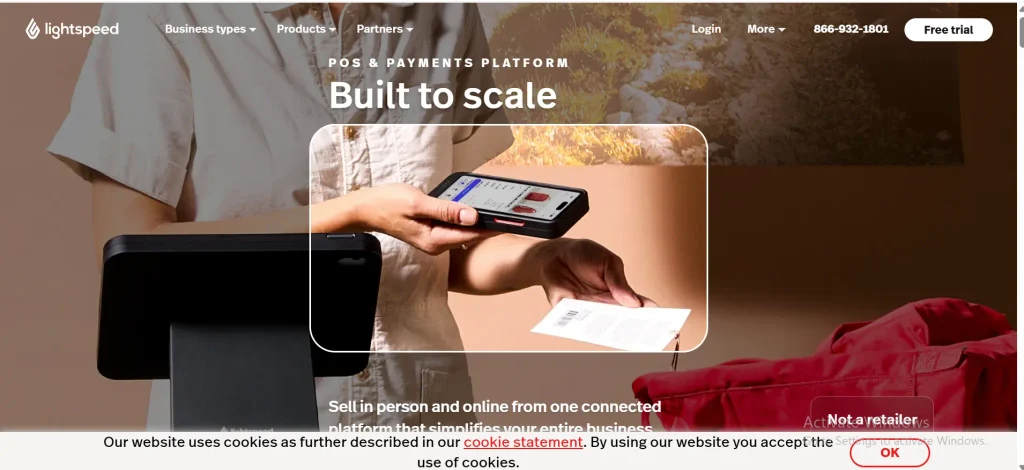
    Homr page of Lightspeed

    Lightspeed is the system I would shortlist for a retailer with thousands of SKUs. It handles purchase orders and multi-location inventory, and its reporting goes deeper than the entry-level tools.

    Pricing: Retail plans are listed at $89 (Basic), $149 (Core) and $289 (Plus) per month, with enterprise pricing on request. There is no free plan, only a trial.

    Pros: Advanced inventory, strong reporting, 24/7 chat support according to NerdWallet’s review.

    Cons: Premium pricing and a steeper learning curve.

    Best for: Growing retailers with complex catalogs.

    5. Toast: Best for Restaurants

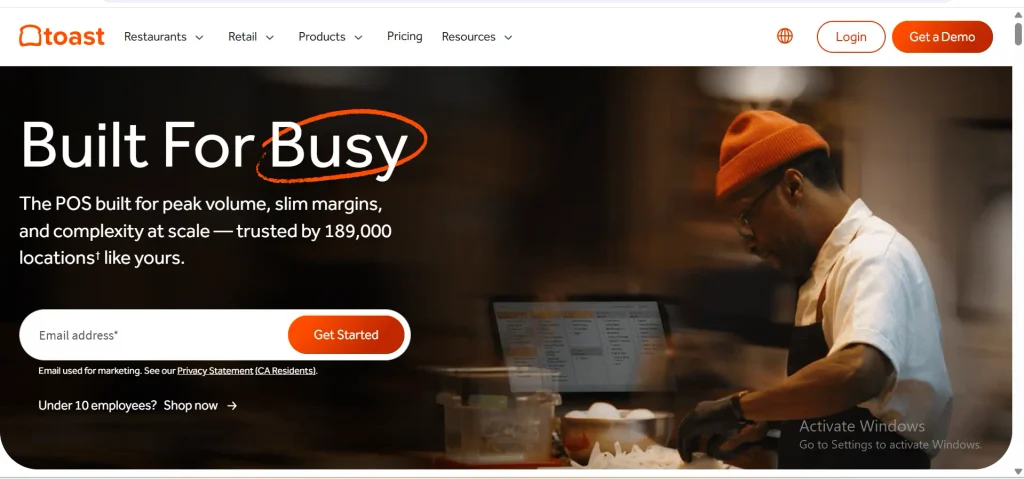
    Home page of toast

    Toast is built around how restaurants work: menu management, table service, kitchen display screens and online ordering all live in one system.

    Pricing: The starter kit has no upfront software cost, and the Point of Sale plan is listed at about $69 per location per month. Hardware and payment processing add to the bill. Toast does not publish every processing rate, so ask for a written quote.

    Pros: Restaurant-specific tools, offline mode reported across plans.

    Cons: Processing is built around Toast’s own payments, and total cost is hard to compare upfront.

    Best for: Restaurants, cafés and food service.

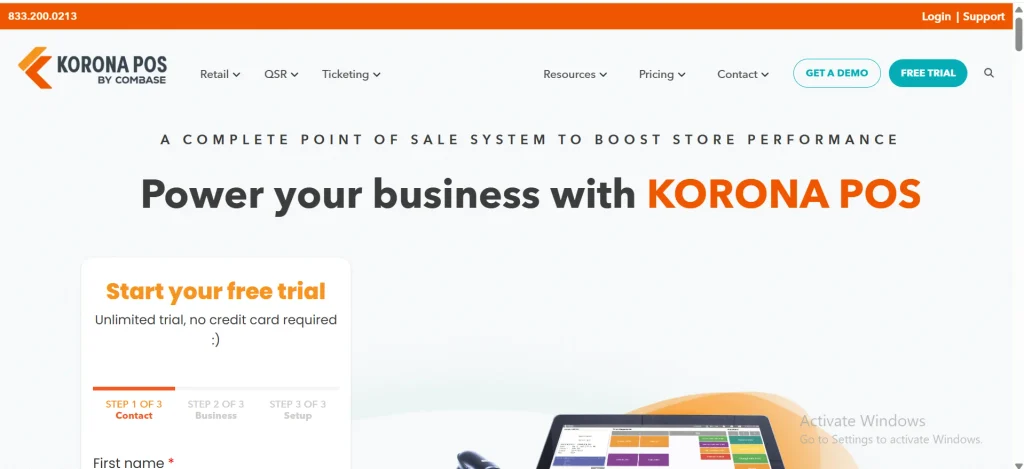
    6. KORONA POS: Best for Specialty Retailers

    Home page of KORONO POS

    KORONA focuses on inventory-heavy stores such as convenience shops and specialty retailers. It covers barcode management, stock replenishment, multi-location control and franchise tools.

    Pricing: Plans start at $59 a month, and there is a free trial but no free plan. Optional modules for ticketing, franchises and food and beverage cost extra. KORONA says it is not a payment processor and lets you pick your own. That is a vendor claim, so confirm which processors it supports today.

    Pros: Deep inventory features, payment flexibility.

    Cons: No free tier, and add-on modules raise the bill.

    Best for: Stores with large product catalogs.

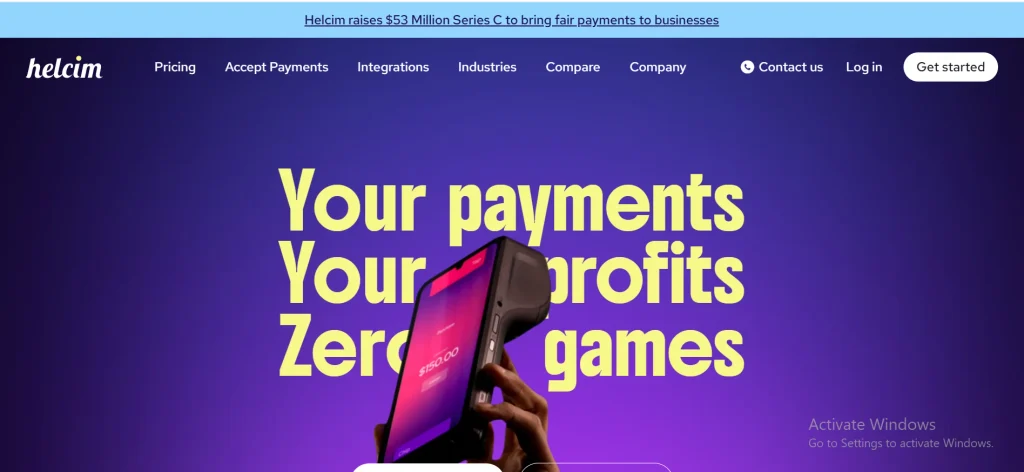
    7. Helcim: Best for Transparent Payment Processing

    Home page of helcim

    Helcim is a payment processor first, with free POS software for its merchants. Its main selling point is interchange-plus pricing. You pay the card networks’ wholesale fee plus a disclosed markup, instead of one blended rate.

    Pricing: There is no monthly fee. The base markup is 0.40% + 8¢ for in-person sales and 0.50% + 25¢ for online or keyed sales, up to $50,000 a month. It drops automatically as volume grows, to 0.15% + 6¢ in-person at the highest published tier.

    Pros: Clear fees, volume discounts, no monthly charge.

    Cons: Limited hardware choice for complex setups, and you need to compare its inventory depth to your catalog.

    Best for: Businesses with steady, higher card volume.

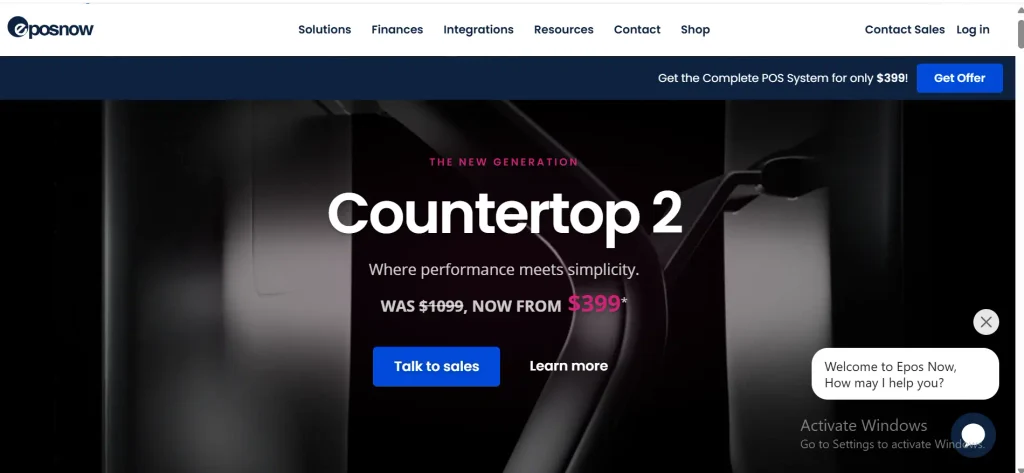
    8. Epos Now: Best for Retail and Hospitality

    Home page of Epos Now

    Epos Now sells retail and hospitality systems as a bundle of hardware, software and support. It covers inventory, staff management and sales reporting.

    Pricing: Third-party trackers list software at about $79 to $84 a month after a price increase in September 2026, with hardware bundles advertised from around $349. Final quotes depend on terminals and add-ons.

    Pros: One package for hardware and software, covers shops and restaurants.

    Cons: Some reviewers raise support and add-on cost concerns, and contracts auto-renew. Read the renewal terms before signing.

    Best for: Independent retailers and hospitality owners who want a bundled setup.

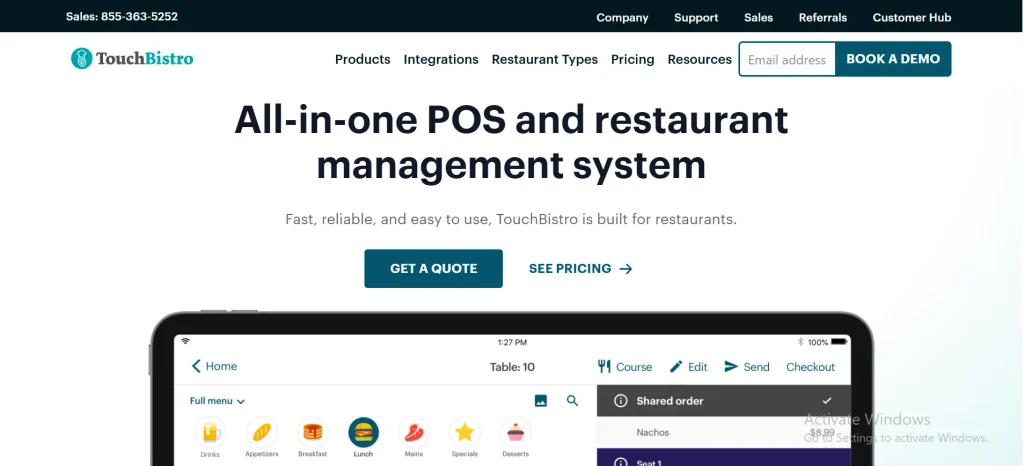
    9. TouchBistro: Best for Independent Restaurants

    Home page of TouchBistro

    TouchBistro is an iPad-based system for sit-down restaurants. It handles tableside ordering, menus, floor plans and staff management.

    Pricing: The Point of Sale plan starts at $69 a month. An Essentials Bundle at $119 a month includes hardware, and payment processing is extra. Some add-ons have no public price, so ask for a full quote.

    Pros: Built for full-service dining, integrates with scheduling tools such as 7shifts.

    Cons: Restaurants only, and the total depends on add-ons.

    Best for: Full-service restaurants and independent dining rooms.

    10. Loyverse POS: Best Budget Option for Small Retailers

    Home page of Loyverse

    Loyverse gives away more than most paid systems. The core POS, kitchen display, customer display and loyalty program are free, and you can run multiple stores under one account.

    Pricing: Add-ons carry the cost. Advanced inventory is about $25 per store per month, and other add-ons like employee management are priced per store or per employee. You bring your own payment processor, and the app works offline.

    Pros: Truly free core, low-risk way to start.

    Cons: Add-ons can add up, and some users report limits in payment integrations and advanced inventory without paid add-ons.

    Best for: Small shops and cafés watching every dollar.

    Quick Comparison of the 10 Best Cloud POS Systems

    Square, Shopify POS and Loyverse have free entry points. Lightspeed, KORONA and TouchBistro charge from day one. Helcim charges no monthly fee but earns its money on card processing.

    POS systemBest forStarting software priceFree optionPayment processing
    Square POSSmall businesses, cafés, mobile sellers$0 (Plus $49, Premium $149 per location)YesSquare Payments
    Shopify POSOnline sellers adding a storePOS Lite included with any Shopify plan (plans from $39); Pro $89 per locationLite only, with a paid planMainly Shopify Payments
    CloverRetail and small hospitalityRoughly $15 to $85 per month, varies by plan and resellerNoClover-linked processing
    LightspeedMulti-location retailFrom $89 per monthNo (trial)Lightspeed Payments; confirm other options
    ToastRestaurants$0 starter kit; Point of Sale about $69 per locationStarter kitToast Payments
    KORONA POSSpecialty retail, large catalogsFrom $59 per monthNo (trial)Choice of partner processors
    HelcimHigher card volumeNo monthly feeFree POS softwareHelcim (interchange-plus)
    Epos NowRetail and hospitalityAbout $79 to $84 per monthNoIntegrated payments; confirm options
    TouchBistroFull-service restaurantsFrom $69 per month; $119 bundle with hardwareNoIntegrated payments
    LoyverseBudget retailers and cafés$0 core; paid add-onsYesThird-party processors

    Prices are list prices from vendor pages and third-party trackers as of November 2026. Processing fees are extra in every row.

    How We Evaluated the Cloud POS Systems

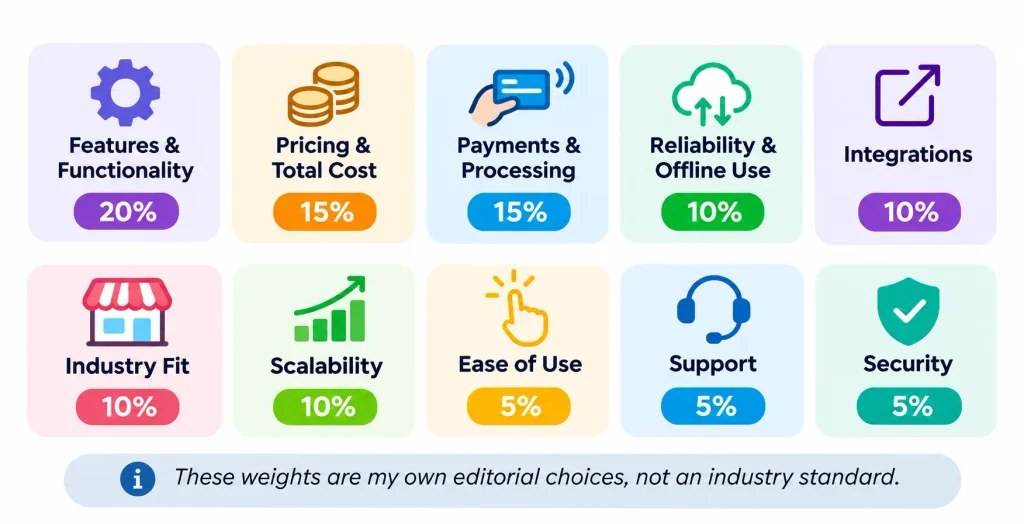
    Infographic showing how cloud POS systems are evaluated based on features, pricing, payment processing, reliability, integrations, industry fit, scalability, ease of use, customer support, and security.

    I scored each system against the same checklist so no product got a free pass. These weights are my own editorial choices, not an industry standard.

    • Features: 20%
    • Pricing and transaction costs: 20%
    • Ease of use: 15%
    • Inventory management: 15%
    • Integrations: 10%
    • Security: 10%
    • Customer support: 10%

    I also checked payment flexibility, offline behavior and how well each product scales. Where a detail comes from the vendor rather than independent reviews, I treat it as a claim to verify, not a fact.

    Cloud POS Comparison: Pricing, Inventory, Payments and Offline Mode

    The monthly software fee is rarely the biggest cost. Payment rules, inventory depth and offline behavior decide whether a system fits your business.

    Pricing Models Compared

    Cloud POS vendors charge in five main ways. Knowing which one you are signing up for matters more than the headline price.

    Pricing modelHow you payExamples
    Flat-rate processingOne blended percentage plus a fixed fee per saleSquare
    Interchange-plusWholesale card cost plus a disclosed markupHelcim
    Subscription plus processingMonthly software fee, processing billed separatelyLightspeed, KORONA, TouchBistro, Epos Now, Shopify POS Pro
    Free core plus add-onsFree software, pay for extra modulesLoyverse, Square Free
    Bundled hardware and softwareDevice and plan sold together, processing tied to the providerClover, Toast

    Inventory Management

    For large catalogs, Lightspeed and KORONA are the strongest fits on paper, with purchase orders, replenishment and multi-location tools. Shopify POS is best when online and in-store stock must match in real time. Square covers the basics well for small catalogs. Loyverse needs a paid add-on for advanced inventory. Toast and TouchBistro focus on menus and tables, not retail SKUs.

    Payment Processing Rules

    Some systems use their own payment processing, which is simple but limits your choices. Others work with several processors. Before you commit, learn the difference between a payment gateway, which passes card data to the bank, and a merchant account, which holds the funds from card sales.

    Square, Toast and Helcim run their own processing. Loyverse and KORONA lean toward letting you choose. Ask every vendor two questions: can I use another processor later, and what does leaving cost?

    Offline Functionality

    Offline mode is not one feature. It is a set of limits that differ by vendor. Square, Toast and Loyverse report offline modes, and the details vary, so check the rest directly.

    Before buying, ask:

    • Can I still take card payments with no internet, and is there a per-sale limit?
    • Are offline sales queued and sent automatically on reconnection?
    • Do I see current stock while offline?
    • How long can a device stay offline before data is at risk?
    • What happens if two devices sell the last item at the same time?

    What Is a Cloud POS System?

    A cloud POS system is point-of-sale software hosted on remote servers and used over the internet. It records sales, takes payments and updates inventory and reports in one place, so owners can see every location from any connected device. It is a form of software as a service built on cloud computing.

    For a deeper understanding of its technology, explore how a cloud-based POS system works , including its payment processing, inventory synchronization, and cloud data management capabilities.

    The older idea is the classic point of sale, a till and a local computer. A cloud version moves the data and updates off that local machine.

    How Does Cloud POS Software Work?

    1. A customer decides to buy and you ring up the sale.
    2. The software records the transaction.
    3. The card is read and the payment is processed securely.
    4. The sale syncs to the cloud.
    5. Inventory counts and reports update.
    6. You see the numbers from any logged-in device.

    Main Components

    • Cloud POS software
    • Payment processing
    • A terminal, tablet or phone
    • An inventory database
    • Customer tools and reports
    • Integrations such as accounting

    Benefits of Cloud POS Software

    • Access from anywhere: check sales from your phone.
    • Real-time inventory: a sale in one store updates stock everywhere.
    • Multi-location control: one dashboard for every branch.
    • Lower upkeep: the vendor runs the servers.
    • Automatic updates: new features arrive without a technician.
    • Better reporting: see best sellers and slow hours.
    • Easier integrations: connect accounting, email and online stores.

    Cloud POS vs. Traditional POS: What’s the Difference?

    The main difference is where your data lives and who maintains it. A traditional system stores data on your own hardware. A cloud system stores it online and the vendor manages the infrastructure.

    FeatureCloud POSTraditional POS
    Data storageRemote cloud serversLocal servers or devices
    AccessAny internet-connected deviceUsually on site
    UpdatesOften automaticOften manual
    Inventory syncReal-time or near real-timeDepends on the system
    Upfront costOften lowerOften higher
    Multiple locationsGenerally easierMay need extra infrastructure
    Internet dependenceVaries with offline modeUsually lower
    MaintenanceVendor-managedMore local IT work

    When Cloud POS Makes Sense

    Choose cloud if you run more than one location, sell online, want remote reporting or have no IT staff.

    When Traditional POS Makes Sense

    A traditional system can still fit a single site with unreliable internet, strict on-premises data rules or a heavily customized workflow.

    Essential Features to Look for in a Cloud POS System

    Features only matter if they match how you sell. Use this list as a filter.

    • Payments: cards, contactless, Apple Pay and Google Pay.
    • Inventory: real-time counts, barcode scanning, low-stock alerts and purchase orders. Businesses looking to improve stock accuracy can also explore the essential features of inventory management software, including stock tracking, reorder management, and inventory optimization.
    • Reporting: sales by item, hour and employee.
    • Customer tools: profiles, loyalty and gift cards.
    • Staff controls: permissions, time tracking and activity logs.
    • Multi-location management: one dashboard and shared stock.
    • Omnichannel selling: online and in-store inventory in sync.
    • Offline mode: clear rules for card payments and syncing.
    • Security and backup: encryption and role-based access.
    • Integrations: accounting, ecommerce and email through an API or app store. Connecting POS software with financial tools can simplify business reporting and reconciliation. Learn more about the benefits and features of cloud-based accounting for managing business finances.

    Here is why inventory sync matters. Picture a clothing retailer with three stores. A customer buys the last medium jacket in store A. A cloud POS lowers that item’s count at stores B and C within moments, so a shopper in store B is not promised a jacket that is gone. Without sync, staff find out at the shelf.

    How Much Does a Cloud POS System Cost?

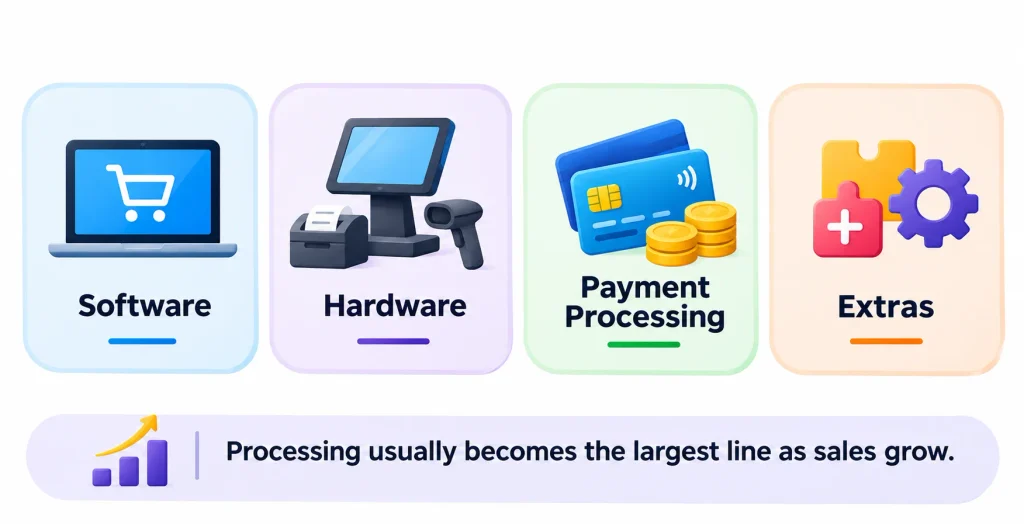
    Cloud POS system cost breakdown showing four main expenses: software subscriptions, POS hardware, payment processing fees, and additional features, with processing costs increasing as sales grow.

    Expect four costs: software, hardware, payment processing and extras. Processing usually becomes the largest line as sales grow.

    • Software: from $0 (Square Free, Loyverse core, Helcim) to around $289 a month for top retail tiers.
    • Hardware: a phone with a card reader is cheap, while a full counter setup can pass $800 to $1,000.
    • Processing: a percentage plus a fixed fee on every card sale.
    • Extras: add-ons, extra locations, premium support and integrations.

    A Realistic Cost Example

    These figures are illustrative, not vendor quotes. Imagine a small shop with $20,000 in monthly card sales across 500 sales of about $40.

    • Square Free at 2.6% + 15¢: about $520 plus $75, or roughly $595 a month in processing.
    • Helcim at interchange + 0.40% + 8¢: if average interchange is around 1.5%, that is about $300 plus $80 plus $40, or roughly $420.

    That gap is about $175 a month, or $2,100 a year. Your real number depends on your card mix. Premium rewards cards cost more in interchange, and small tickets favor the lower per-sale fee. Run the math with your own statements.

    A Shopify store adds a different kind of cost. The Grow plan at $105 a month plus POS Pro at $89 comes to $194 a month before processing and hardware.

    Hidden Costs to Watch

    • Early termination or auto-renewal terms.
    • Fees for extra registers, staff or locations.
    • Paid support or onboarding.
    • Hardware replacement and shipping.
    • Fees to export your data when you leave.

    How to Choose the Best Cloud POS System for Your Business

    Start with your business, not the vendor list.

    1. Name your business type. A restaurant and a clothing store need different tools.
    2. Set a budget that includes processing, not just software.
    3. List your inventory needs: SKU count, variants, purchase orders.
    4. Check hardware compatibility with iPads, Android devices, printers and scanners you already own.
    5. Test integrations with your accounting and ecommerce tools.
    6. Compare security and offline rules using the questions above.
    7. Try before you commit. Use free plans or trials, and read honest owner experiences on communities like small business and restaurateur. Treat any single post as one person’s story, not proof.

    Best Cloud POS Systems by Business Type

    Business typeStrong fitWhy
    Small businessesSquare POSFree entry, simple setup
    Grocery and convenienceLightspeed, KORONA POSBarcodes, purchase orders, large catalogs
    Clothing retailersShopify POS, LightspeedVariants, returns, online sync
    RestaurantsToast, TouchBistroTable, menu and kitchen tools
    Coffee shopsSquare, CloverFast checkout and simple menus
    Ecommerce brandsShopify POSOne catalog online and in store
    Multi-location retailLightspeedCentral inventory and reporting
    Mobile businessesSquare POSPhone-based payments with Tap to Pay

    Are Cloud POS Systems Secure?

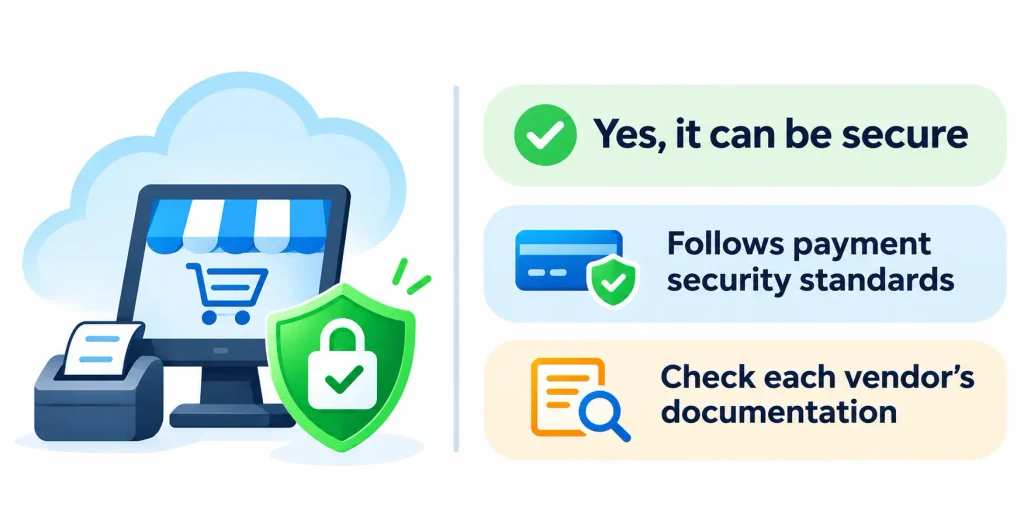
    Cloud POS security illustration showing a secure payment system with encryption, security shields, payment protection standards, and vendor documentation verification.

    Yes, when the vendor follows recognized payment security standards, but not every provider supports every certification. Check each vendor’s documentation instead of assuming.

    Look for these safeguards:

    • Compliance: PCI DSS is the card industry’s security standard. The PCI Security Standards Council publishes the rules.
    • Encryption and tokenization: tokenization swaps card numbers for meaningless tokens, so stolen data is useless.
    • Access controls: role-based permissions and multi-factor login for managers.
    • Backups and recovery: cloud data should survive a lost or broken device.

    You share responsibility. Use strong passwords, remove access when staff leave and keep devices updated.

    Frequently Asked Questions About Cloud POS Systems

    What is the best cloud POS system for small businesses?

    Square POS is the best all-around pick because the free plan covers core needs and paid upgrades are optional.

    What is the best cloud POS system for retail stores?

    Lightspeed fits retailers with complex inventory, Shopify POS fits online-first sellers, and Clover or KORONA suit many standard shops.

    What is the best cloud POS system for restaurants?

    Toast is a leading choice for restaurants, and TouchBistro is a strong option for full-service dining rooms.

    Are there free cloud POS systems?

    Yes. Square Free and Loyverse have free core software, Toast offers a starter kit, and Helcim includes free POS software. You still pay card processing fees and for any hardware or add-ons.

    Can a cloud POS system work without the internet?

    Many can for limited tasks, such as queuing card payments. Limits and time windows vary, so ask each vendor how long offline sales are held and how syncing works.

    How much does cloud POS software cost?

    Software ranges from free to roughly $289 a month in the plans covered here. Add processing fees and hardware for the real total.

    Final Verdict

    There is no single winner among the 10 best cloud POS systems of 2026 because the right choice depends on your industry, business size, budget, and payment requirements. 

    Square POS is a good starting point for most small businesses, while Shopify POS suits businesses selling both online and in physical stores. 

    Restaurants can consider Toast or TouchBistro, whereas retailers managing complex inventories may benefit from Lightspeed or KORONA POS. Businesses looking to minimize software costs can explore Loyverse, while Helcim may be worth considering for businesses with higher card transaction volumes. 

    Before making a decision, compare the total cost of ownership, payment processing requirements, offline functionality, and data export options. Taking advantage of a free trial and requesting a written pricing quote can also help you avoid unexpected costs.