Cloud-based accounting is a way of managing your financial records with software that runs on remote servers and that you open through a browser or app. You can record sales, send invoices, match bank transactions and run reports without installing anything on one office computer.
Think of a small design studio. The owner sends an invoice from her laptop on Monday. Her bookkeeper sees the same invoice from home on Tuesday. When the client pays, the money shows up in the bank feed and gets matched to the invoice. Nobody emails a spreadsheet back and forth.
This guide explains how cloud-based accounting works, what it can and can’t do, how it compares with desktop software, what it really costs, and how to pick and set up a system. I’ve kept the language plain and flagged where things depend on the product you choose.
What is cloud-based accounting?
Cloud accounting in simple terms
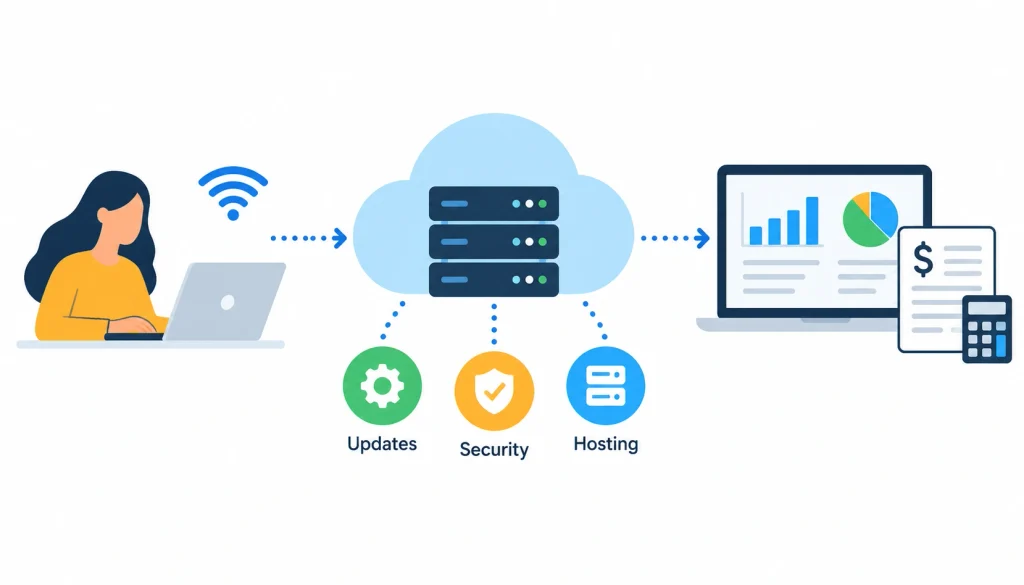
Cloud-based accounting means your accounting software and your data live on a provider’s servers instead of on your own machine. You log in over the internet. The provider runs the hosting, installs updates and manages the underlying infrastructure.
This is a software delivery model, and it doesn’t change the accounting itself. Debits, credits, tax rules and reporting standards stay the same. What changes is where the software lives and how you reach it. Most cloud accounting products follow the software as a service (SaaS) model, where you pay a recurring fee for access.
Wikipedia has a short overview of the concept if you want a neutral reference: cloud accounting.
What is cloud accounting software?
Cloud accounting software is the program itself. It lets you record transactions, create invoices, track bills, reconcile bank accounts and produce reports such as a profit and loss statement or balance sheet. Behind the screens sits a general ledger, the master record where every transaction ends up.
Is cloud accounting the same as online accounting?
The terms overlap, and vendors use them loosely. “Online accounting” can mean a true cloud product, but it can also mean a desktop program with a web portal bolted on. If hosting and offline access matter to you, ask the vendor directly how the product is hosted and what works without a connection.
Who uses it?
Freelancers, small businesses, online sellers, professional service firms and bookkeeping practices all use it. So do larger companies, usually as part of a bigger finance or ERP system. The features you need change a lot between a one-person consultancy and a company with several legal entities.
How does cloud accounting work?
The details differ by product, but most systems follow the same six steps.
- A user enters a transaction by hand or imports it from a bank feed, payment processor or connected app.
- The software applies its accounting rules and your account mappings to classify it.
- The transaction updates the relevant records, including the general ledger.
- Reconciliation tools help you match transactions against your bank statement.
- Reports such as profit and loss and cash flow reflect the recorded data.
- Authorized users, such as your owner, bookkeeper and accountant, see the updated numbers from their own devices.
Step 1: Enter or import transactions
You can type in a sale, scan a receipt, or let a bank feed bring in transactions automatically. Many businesses use all three. Bank feeds are convenient, but they don’t always update instantly, so check how often your bank and software sync.
Every recorded transaction affects the relevant accounts and contributes to a business’s financial records. If you want to understand this process in more detail, explore how accounting entries work and how transactions are recorded in the books.
Step 2: Process and categorize
The software assigns each transaction to an account, such as “software subscriptions” or “sales revenue.” Many products suggest categories based on past behavior. Treat these as suggestions. A person should still review them, because a wrongly coded expense can distort your reports.
Step 3: Reconcile
Bank reconciliation means comparing your books with your bank statement to confirm they agree. Cloud tools speed this up by proposing matches between bank lines and invoices or bills. You approve or correct each one.
Step 4: Update the records and reports
Once a transaction is recorded and reconciled, it flows into your financial reports. The reports are only as current as your data. If you haven’t entered last week’s bills, your “real-time” profit figure will be off.
Step 5: Share with the right people
You give each person a role. An accountant might see everything, while a sales manager only sees invoices. Good systems let you change or remove access in seconds.
A practical example
Here is a made-up scenario to show the flow. A small landscaping company finishes a job and sends a $2,400 invoice from the software. The customer pays by bank transfer three days later.
The payment arrives in the bank feed. The software suggests matching it to the open invoice, and the office manager clicks to confirm. The invoice is marked paid, receivables drop by $2,400, cash goes up by the same amount, and the next cash flow report shows it. The workflow in short: transaction, accounting software, general ledger, reconciliation, financial reports.
Exact steps depend on your software and which services you’ve connected.
What are the main features of cloud accounting software?
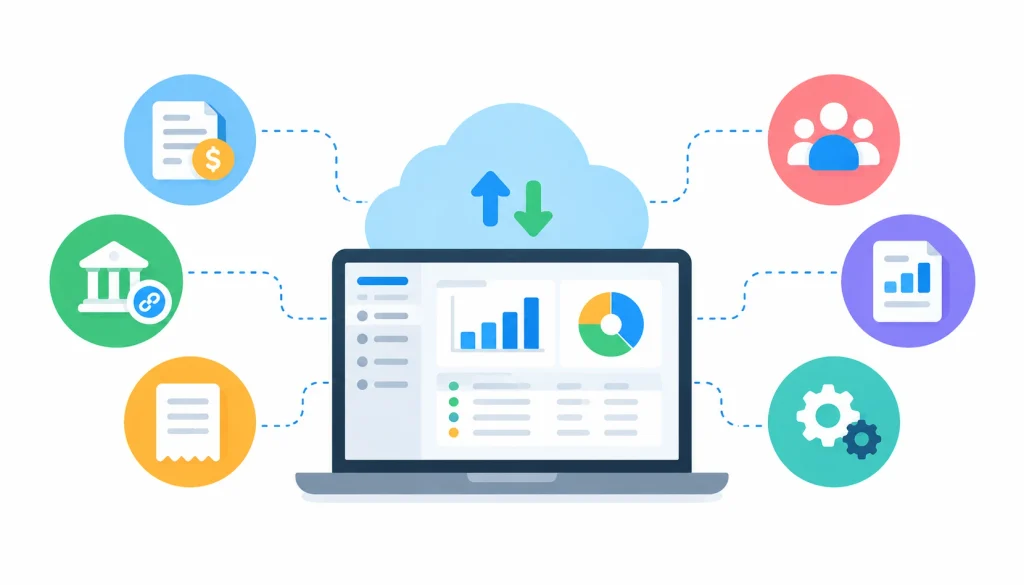
Not every product includes everything below, and some features sit behind higher-priced plans. Check the vendor’s own documentation before you assume a feature is included.
- Automated bookkeeping. Imported transactions, recurring entries and suggested categories cut down repetitive typing.
- Invoicing and accounts receivable. You create invoices, track who has paid, and send overdue reminders.
- Bills and accounts payable. You log supplier bills, schedule payments and, in some products, set up approvals.
- Bank feeds and reconciliation. Transactions come in from your bank and get matched to your records.
- Financial reporting. Profit and loss, balance sheet and cash flow reports, often with dashboards.
- Multi-user access. Different people get different permissions.
- Mobile and remote access. You work from a browser or phone app.
- Integrations. Connections to payroll, inventory, ecommerce, CRM and payment tools, usually through an API.
- Audit trail. The system records who changed what and when.
- Provider-managed updates and backups. The vendor ships updates and runs its own backups. You should still confirm how you would recover your data and export it.
What are the benefits of cloud-based accounting?
The short list: remote access, easier collaboration with your accountant, less manual entry, automatic updates, integrations with other tools, and room to add users as you grow. Businesses can reduce repetitive data entry and simplify financial workflows by connecting accounting with other operational tools. Learn how integrated accounting software helps streamline financial management, improve collaboration, and simplify reporting.
Here is how those play out in practice.
You can work from anywhere. Authorized users log in from any approved device. That helps remote teams and owners who travel.
You see your numbers sooner. Instead of waiting for the month-end, you can check unpaid invoices and cash balances during the month. The catch is that this only works if transactions are entered and synced promptly.
You spend less time on repeat tasks. Recurring invoices, bank imports and match suggestions remove a lot of retyping.
Working with an accountant gets simpler. Your accountant logs in to the same books you use. That avoids the “which version of the file is current?” problem.
You carry less IT work. The provider handles hosting and software maintenance. You still manage users, passwords and integrations.
It grows with you. You can usually add users or switch plans. Limits and prices vary, so read the plan details.
It connects to your other tools. A sale in your online store can create an entry in your books without someone retyping it, provided the integration is set up well.
What are the disadvantages of cloud accounting?
A fair guide has to cover the downsides. Most are manageable if you plan for them.
You need internet access. Some products offer limited offline features, but most need a connection for full use. Ask what happens during an outage and keep a plan for urgent tasks.
The fees never stop. You pay a subscription for as long as you use the product, and costs can climb as you add users or features.
Security takes shared effort. A strong provider can still be undermined by a weak password or an ex-employee who still has access.
Switching providers can be hard. This is called vendor lock-in. Before you commit, check what you can export and in what format, and whether your full history comes with it.
Integrations can break or duplicate data. Two apps may disagree about which record is the master copy, or sync at different speeds.
Outages happen. Look for the provider’s published uptime commitments and status page.
How to reduce the risks:
- Turn on multi-factor authentication for every user.
- Give each person only the access their job requires.
- Export your data on a regular schedule and store a copy somewhere you control.
- Test a restore or export before you need one.
- Train staff on phishing and password habits.
- Read the provider’s security and terms documents before signing.
Is cloud accounting secure?
It can be, but being in the cloud doesn’t make data safe by itself. Security depends on the provider’s controls, how you configure the account, how your people behave and what the contract says.
What providers typically do
Reputable providers use encryption for data in transit and at rest, access controls, monitoring, backups and an incident response process. The exact controls differ by vendor and sometimes by plan.
What to check before you choose
- Multi-factor authentication (MFA)
- Role-based permissions
- Audit logs
- Encryption in transit and at rest
- Backup and recovery procedures
- Breach notification policy
- Independent assurance reports, such as a SOC 2 report
- Data export and deletion terms
- Where your data is stored, and which privacy rules apply
Who is responsible for what?
Most providers describe a shared responsibility model. The provider secures its servers and software. You are responsible for who has access, how strong the credentials are, and how the account is set up.
Reading the certifications
You’ll see names like ISO/IEC 27001 and SOC 2. These are security frameworks and audit reports. They are different from accounting standards such as GAAP or IFRS, and from privacy laws such as the GDPR. A certification shows the provider follows a defined set of controls. It doesn’t guarantee nothing will ever go wrong, and not every product holds every certification. Ask for the vendor’s current documentation.
Cloud accounting vs. traditional accounting software
Desktop accounting software is installed on your own computer or server. Cloud accounting runs on the provider’s servers. The lines blur, since some desktop products now offer cloud sync or remote hosting.
| Factor | Cloud accounting | Traditional desktop accounting |
| Access | Usually through the internet | Often tied to a device or local network |
| Setup | Browser or app | Usually installed locally |
| Updates | Generally handled by the provider | May need manual or locally managed updates |
| Collaboration | Often supports shared access | May need extra arrangements |
| Pricing | Commonly a recurring subscription | Subscription or perpetual license |
| Maintenance | Mostly provider-managed | More falls on your organization |
| Internet needs | Usually required for full use | Some programs work offline |
| Data control | Depends on terms, exports and setup | Depends on your own infrastructure |
| Security | Shared between provider and customer | Depends on your environment and support |
1. When cloud is the better fit
Cloud tends to suit remote teams, businesses with several locations, owners who work closely with an outside accountant, and companies that want their accounting linked to other tools.
2. When desktop may make more sense
Desktop can still work for a business with a specialized legacy system, unreliable internet, or a stable process that would be costly to rebuild.
3. Can you run both?
You can, for example during a transition. Pick one system as the source of truth, or you will end up entering things twice and arguing over which numbers are right.
4. Cash-basis vs. accrual: a common mix-up
Cloud accounting is about how the software is delivered. Cash-basis and accrual accounting are about when you record income and expenses. Say you send a $2,000 invoice in March and the customer pays in April. On a cash basis, you record the income in April. On an accrual basis, you generally record it in March, when you earned it. Which method you can or must use depends on your accounting framework and local tax rules, so ask your accountant.
How much does cloud accounting software cost?
The subscription price is only part of it.
1. Common pricing models
Expect monthly or annual subscriptions, tiered plans, per-user fees, and custom quotes for larger companies. Some add-ons are billed by usage.
2. What drives the total
Number of users, transaction volume, the features you need, paid integrations, migration help, training, support plans, payment processing fees and contract length all change the bill. Exit costs, such as paying someone to extract your data, count too.
3. A hypothetical first-year calculation
These numbers are invented to show the method. They are not market prices.
| Item | Assumed cost |
| Base plan, 12 months at $60 | $720 |
| Two extra users, 12 months at $15 each | $360 |
| Payroll integration, 12 months at $20 | $240 |
| Data migration help, one-time | $600 |
| Staff training, one-time | $300 |
| First-year total | $2,220 |
Now compare that with what you spend today on software licenses, IT support, accountant time spent fixing files, and any late-payment losses. Use the vendor’s current pricing page for real figures and note the date you checked.
4. Is it cheaper than desktop software?
Sometimes. It depends on the time frame, your size, how much IT support you already pay for, and how fees grow. Over several years a subscription can cost more than a one-time license, or less once you count maintenance. Run the numbers for your own case.
How to choose the right cloud accounting software
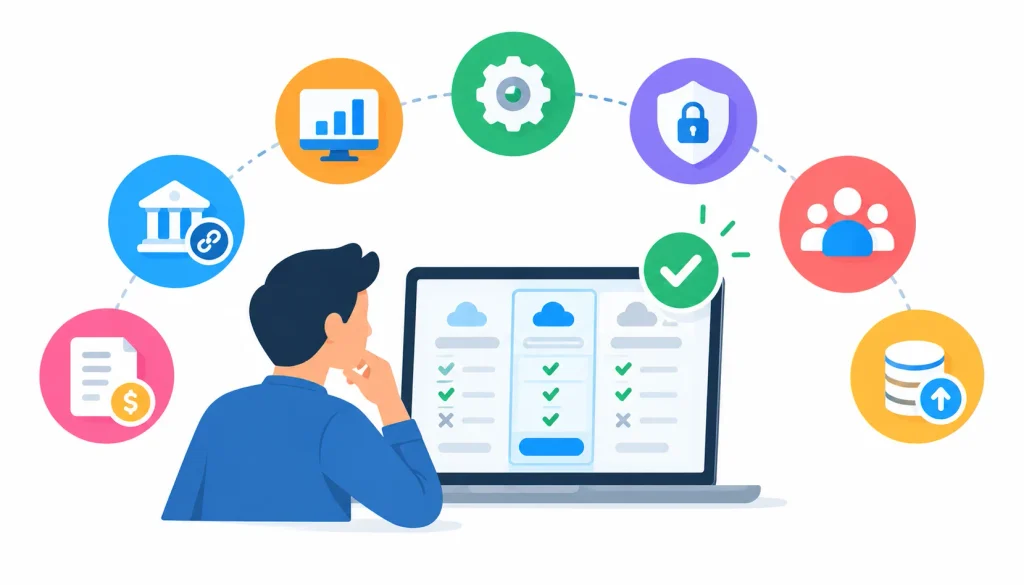
- Write down what you need. Invoicing, expenses, payroll, inventory, tax support, multiple currencies, consolidation.
- Check integrations. Confirm it connects with your bank, payment tools, and any inventory or ecommerce platform you use.
- Review security. Look at MFA, permissions, backups, exports and the vendor’s security documents.
- Compare the full price and the contract. Include user limits, renewal terms, support fees and exit terms.
- Test usability. Ask your bookkeeper or accountant to try it, since they’ll use it most.
- Run a trial with real tasks. Record a few transactions, reconcile a bank account, run a report and export your data.
Examples to start your research
Well-known options include QuickBooks Online, Xero, Zoho Books, FreshBooks and Oracle NetSuite. They aim at different customers: FreshBooks leans toward service businesses, while NetSuite targets larger companies that need ERP features. This isn’t a ranking or endorsement. Features and prices change, so confirm details on each vendor’s site.
It also helps to hear from real users. Communities such as smallbusiness, Bookkeeping and Accounting on Reddit are full of people comparing tools and sharing migration problems. Treat individual posts as opinions, not verified facts.
How to implement cloud accounting in your business
- Review your current process. List how you invoice, pay bills, reconcile and report today, and note what frustrates you.
- Pick a platform. Use the checklist above.
- Clean your data. Tidy customer and supplier lists, your chart of accounts, open invoices and bills, and opening balances.
- Migrate and check. Import the data, then confirm balances and totals match your old system.
- Set up users, permissions and integrations. Turn on MFA and test each bank and app connection.
- Train your team. Give each role a short, specific guide for the tasks they’ll do.
- Test reports and reconciliation. Make sure statements and balances match what you expect.
- Run both systems briefly. Review your first full reporting period before you retire the old setup.
The most common mistake I see in migrations is importing messy data and hoping the new tool will fix it. It won’t. Clean first.
Cloud accounting by business type
- Small businesses use it for bookkeeping, cash flow checks, invoicing and expense tracking.
- Freelancers and consultants need client invoicing, expense tracking and payment follow-up.
- Ecommerce sellers need sales, refunds, fees and sometimes inventory to flow into the books. Detail levels vary by platform.
- Growing companies add users, approvals, more detailed reports and payroll or inventory links.
- Accountants and bookkeepers use shared access to work on client books without passing files around.
- Multi-entity groups need consolidation, intercompany handling, multiple currencies and tighter controls, which usually points to a larger platform.
These are typical patterns, not rules.
How cloud accounting connects to other business systems
An integration passes data between your accounting tool and another app. When it works, a payroll run creates journal entries, an online sale creates an invoice and a payment, and a stock purchase updates inventory and the ledger.
Businesses that manage stock, equipment, and multiple revenue streams need accurate financial records to make informed decisions. Explore how cloud accounting for inventory and asset tracking can improve financial visibility and help businesses monitor assets, revenue, and potential risks.
Before you connect anything, ask a few questions:
- How often does it sync?
- Which fields are included?
- What happens when a sync fails?
- Which system holds the master customer and product records?
- Who has permission to change the connection?
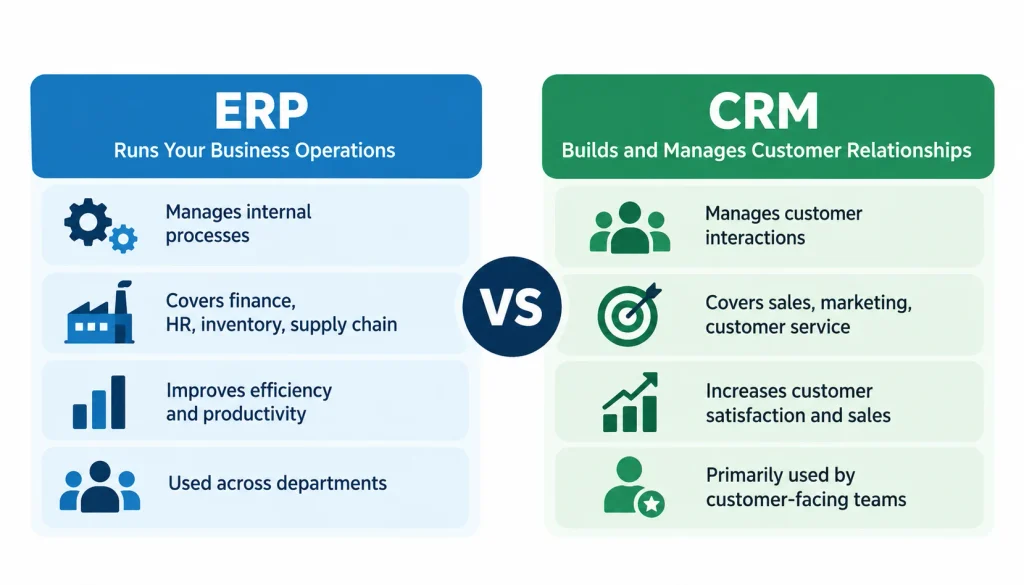
Accounting can also be one module inside an ERP system that also handles purchasing, inventory and orders. CRM links are useful when sales and finance share customer data.
What is the future of cloud accounting?
The near-term changes are practical ones. AI can suggest categories, read invoice data and flag unusual transactions. Reconciliation tools are getting better at spotting exceptions. Forecasting tools use past transactions to project cash flow.
All of these need review. An AI-suggested category can be wrong, and a forecast is only as good as its data and assumptions. Security, access control and the ability to move your data out will matter as more of your finances run through connected tools.
Frequently asked questions about cloud-based accounting
What is cloud-based accounting?
It is accounting software hosted on remote servers and accessed over the internet. You use it to record transactions, send invoices, reconcile bank accounts and run reports.
How does cloud accounting work?
You enter or import transactions, the software classifies them and updates your ledger, you reconcile against your bank, and reports reflect the result. Authorized people view the same data from their own devices.
What are the main benefits?
Remote access, easier collaboration, less manual entry, provider-managed updates, integrations and scalable user access. Exact features depend on the product and plan.
What are the disadvantages?
Internet dependence, ongoing fees, possible outages, migration effort, vendor lock-in and shared security responsibility.
Is cloud accounting secure?
It can be. Security depends on the provider’s controls, your configuration, your team’s habits and the contract. Turn on MFA and review permissions regularly.
Can it work without the internet?
Most products need a connection for full use. Some offer limited offline features. Check before you buy.
Is it suitable for small businesses?
Often yes, since many products are built for small businesses. Check that the features, integrations and price fit your situation.
How much does it cost?
Prices vary by plan, users and add-ons. Look at the total cost, including migration, training and integrations, rather than the subscription alone.
What is the difference between cloud and desktop accounting?
Cloud software runs on the provider’s servers and is reached online. Desktop software is installed locally. They differ in access, maintenance, collaboration, pricing and who handles what.
Conclusion
Cloud-based accounting moves your books onto a provider’s servers so you and your team can work on them from anywhere. It saves time on repetitive work and makes collaboration easier. It also brings recurring costs, internet dependence and security duties you can’t hand off completely.
Start with your own needs. Write down your users, integrations, reporting and budget, then trial two or three products with real tasks. If cloud-based accounting fits, migrate carefully and keep a recent export of your data.